How to Fix Broken Links & Redirects on Your Website
Learn how to fix broken links and redirects that return errors instead of 200 OK — with exact steps for WordPress, Wix, Squarespace, Webflow, Shopify and custom sites.

On this page
If ScoutRival’s SEO Score flagged “Fix pages that don’t return 200,” it means some of the pages it crawled answered with an error or a redirect instead of a clean 200 OK. Left alone, these broken links and messy redirects frustrate visitors and waste the time search engines spend on your site. The good news: they’re straightforward to fix, and this guide walks you through it on every major platform — no coding required.
What “pages that don’t return 200” actually means
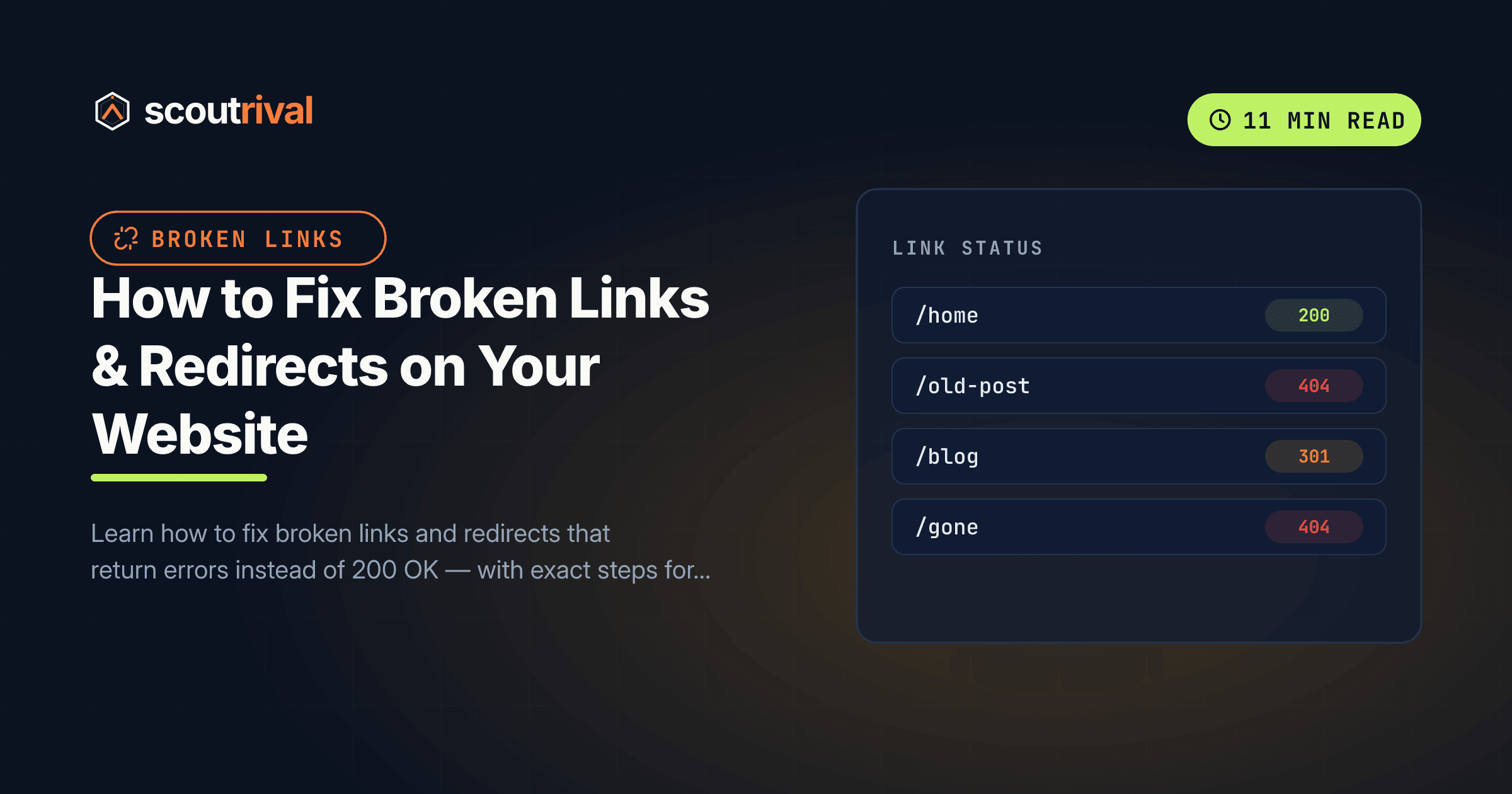
Every time a browser or a search engine requests a page, your server answers with a three-digit HTTP status code that says what happened. The one you want is 200 OK — “here’s the page, everything’s fine.” A few others cause trouble:
- 404 Not Found — the page doesn’t exist. This is what a broken link points to.
- 500 / 503 Server Error — something crashed on the server.
- 301 / 302 Redirect — the URL sends the visitor somewhere else. A single redirect is fine; a chain of them is not.
Think of your website like a phone directory. A 200 is a number that connects. A 404 is a disconnected line. A redirect is “the number you dialled has changed — please call this one instead.” One forwarding message is helpful; five in a row before you finally reach someone is maddening — and that’s exactly how a redirect chain feels to a search crawler.
In plain terms: a broken link is a link on your site (or pointing to it) that leads to a page returning an error, and a redirect is a rule that forwards one URL to another. This check flags any crawled page that didn’t answer with a straightforward 200 OK.
Why it matters for your SEO
Broken links and tangled redirects do three kinds of quiet damage:
- They waste crawl budget. Search engines only spend so much time on your site per visit. Every request that hits a 404 or bounces through a redirect chain is time not spent discovering your real content — so new pages get found more slowly.
- They erode ranking value. When a page moves, the “authority” it earned should pass to its new home through a clean 301. Broken links leak that value into a dead end; long redirect chains lose some of it at every hop.
- They hurt the visitor experience. A shopper who clicks a link and lands on an error page usually leaves — and a high bounce rate on dead pages is a bad signal all round.
ScoutRival’s SEO Score checks the status code every crawled page returns and flags any that come back as an error or an unnecessary redirect instead of 200 OK. Because a broken or bouncing page can fall out of the index entirely, this is scored as a high-severity crawlability issue — worth fixing early.
How to check if you have this problem
You can spot the worst offenders in about 30 seconds, then use a tool for the full picture.
The 30-second manual check:
- Open the pages ScoutRival listed as failing and see what loads. An error page or a “this page has moved” message confirms the problem.
- Click through your main navigation and your most important internal links. Any that land on a “Page not found” screen are broken.
- Watch your browser’s address bar as pages load — if a URL you clicked visibly changes to a different one, that link is going through a redirect it doesn’t need to.
The thorough tool check:
- Open Google Search Console → Pages (the Indexing report). Look at “Not found (404)” and “Page with redirect” — Search Console lists the exact URLs Google encountered.
- Re-run your ScoutRival SEO audit for a plain-English list of every page that isn’t returning 200, so you know precisely what to fix.
Make a short list of the bad URLs before you start — you’ll work through it platform by platform below.
How to fix it — step by step
For each bad URL, decide which of these applies, then follow your platform’s steps:
- The page still exists, but a link to it is wrong → fix the link (correct the typo or update the URL).
- The page moved to a new address → set up a single 301 redirect from the old URL to the new one.
- The page is gone for good → let it return a proper 404, and remove any internal links pointing to it.
- The URL redirects through several hops → replace the chain with one direct 301 to the final destination.
WordPress
WordPress handles redirects best through an SEO or redirect plugin:
- Install a redirect tool — Redirection (free) or the redirect manager built into Yoast SEO Premium or Rank Math.
- In Redirection (Tools → Redirection) or Rank Math → Redirections, add a rule: enter the old/broken URL as the source and the correct live page as the target, and choose 301 (permanent).
- To fix a broken link (rather than a moved page), edit the post or page containing it, click the link, and update it to the correct URL. Save.
- Check Rank Math → Redirections or your plugin’s list for existing rules that point to another redirect — collapse those chains so each old URL jumps straight to the final page.
Wix
Wix has a built-in redirect manager in the dashboard:
- Go to your Wix dashboard → SEO Tools → URL Redirect Manager (also reachable under Marketing & SEO).
- Click + New Redirect, enter the old URL under “Old URL”, the current page under “New URL,” and keep the type as 301. Save.
- To repair a broken link, open the page in the Wix Editor, click the linked text or button, and re-select the correct destination in the link panel. Publish.
- Review your redirect list and make sure none of the “New URL” targets are themselves redirected elsewhere.
Squarespace
Squarespace lets you manage redirects site-wide:
- Go to Settings → Advanced → URL Mappings.
- Add one line per redirect in the format
/old-url -> /new-url 301(the301at the end makes it permanent). Save. - To fix a broken link inside your content, edit the page, click the link, and update its destination. When you rename a page’s URL slug in Page Settings → SEO/General, Squarespace often creates the redirect for you — but confirm it in URL Mappings.
- Scan your URL Mappings for a target that points to another mapped URL, and shorten it to the final page.
Webflow
Webflow manages redirects in project settings:
- Open Project Settings → Publishing and scroll to 301 Redirects.
- Under “Old Path,” enter the old URL path (e.g.
/old-page); under “Redirect to Path,” enter the new one. Click Add Redirect Path, then Publish your site so it goes live. - To fix a broken internal link, open the page in the Designer, select the link element, and update its URL setting in the link panel. Publish.
- Check your redirect list so no “Old Path” resolves to another entry that redirects again — point each straight to the final URL.
Shopify
Shopify has a URL redirect tool built into the admin:
- Go to Online Store → Navigation → URL Redirects (or search “redirects” in your admin).
- Click Create URL redirect. Under “Redirect from,” paste the old/broken path; under “Redirect to,” choose the current page or product. Save — Shopify applies a 301 automatically.
- When you delete a product or page, Shopify offers to create a redirect on the spot — take it, and point it to a relevant live page (a category or the closest replacement) rather than leaving a 404.
- To fix a broken link in your theme or content, edit the menu (Navigation) or the page/blog content and correct the URL.
Any other website (custom or unlisted CMS)
If your site is hand-coded or uses a builder not listed above, redirects live in your server or framework config:
- Find the failing URLs from your audit or Search Console, and decide for each: fix the link, restore the page, allow a clean 404, or add a 301 to the new location.
- Add the 301 rules where your stack handles routing — an
.htaccessfile (Apache), alocation/return 301block (Nginx), a redirects file (many static hosts like Netlify or Vercel), or your framework’s router. - Always use a single 301 from the old URL to the final destination — never chain redirects, and never send everything to the homepage (a “soft 404” Google dislikes).
- Update the actual
<a href="…">links in your templates and content so they point at the live URL directly, and let genuinely deleted content return a real 404.
How to confirm it’s fixed
- Open each URL you fixed in your browser. A repaired page should load normally, and a redirected old URL should land — in one hop — on the correct new page.
- In Google Search Console → URL Inspection, test a URL you fixed; it should report the page as reachable, and you can click Request indexing to speed up re-crawling.
- Re-check the Pages report in Search Console over the next few days — the counts under “Not found (404)” and “Page with redirect” should fall.
- Re-run your ScoutRival SEO audit. The “Fix pages that don’t return 200” item should now pass, and your Crawlability pillar score should tick up.
Common mistakes to avoid
- Redirecting everything to the homepage. Sending a deleted product page to your homepage is treated as a “soft 404.” Point it to the closest relevant page instead — or let it return a genuine 404.
- Building redirect chains. Old-A → Old-B → New-C wastes crawl budget and loses value at each step. Always redirect old-A straight to the final URL.
- Using a temporary (302) redirect for a permanent move. A 302 tells Google the move is temporary and holds ranking value on the old URL. For a permanent change, always use a 301.
- Fixing the redirect but leaving the broken link. If your own navigation or content still links to the dead URL, update that link too — don’t rely on the redirect to paper over it forever.
- Deleting pages without a plan. Before removing a page that has traffic or backlinks, redirect it to a relevant replacement so you keep its value.
The bottom line
Broken links and messy redirects are small problems that add up — wasted crawl time, lost ranking value, and frustrated visitors. Work through the list your audit gives you: fix the wrong links, add a single clean 301 for anything that moved, let truly gone pages 404, and untangle any redirect chains. Most sites can clear the whole list in 10–15 minutes.
Want to know exactly which URLs on your site aren’t returning 200 — and every other quick fix that will move your score? Run a free SEO Score with ScoutRival and get a prioritised, plain-English to-do list for your entire site. If some of those pages are also missing from search entirely, read our guide on why your website isn’t showing on Google.
Frequently asked questions
What does "pages that don't return 200" mean?
How do I find broken links on my website?
What is the difference between a 301 and a 302 redirect?
What is a redirect chain and why is it bad?
Should I redirect deleted pages to my homepage?
How do I fix a broken link in WordPress, Wix or Squarespace?
How long until Google notices my fixed redirects?
Nasir Uddin is an SEO consultant and ScoutRival's SEO & Growth Lead. He's spent years helping small businesses climb the search results — and now the AI answers too — and writes about SEO, AI-search visibility, and turning organic traffic into real growth.
Keep reading
All SEO →


Stop reading about it. Ship it this week.
ScoutRival turns competitor intel into ready-to-post content and graphics — for a fraction of an agency.