How to Add a robots.txt File to Your Website (Step-by-Step)
Learn how to add a robots.txt file to your website — with exact steps for WordPress, Wix, Squarespace, Webflow, Shopify and custom sites.

On this page
If ScoutRival’s SEO Score flagged “Add a reachable robots.txt,” it means search engines couldn’t find a working robots.txt file at your domain. It’s one of the quickest wins in SEO — usually a five-minute fix — and this guide walks you through it on every major platform, no coding required.
What is a robots.txt file?
A robots.txt file is a plain-text file that lives at the root of your website and gives instructions to search-engine crawlers (like Googlebot) about which URLs they may or may not request. Think of it as the sign at a building’s front desk: it doesn’t lock any doors, but it tells visitors which rooms are open and points them toward the map.
When a search engine visits your site, the very first thing it looks for is yoursite.com/robots.txt. If it finds a valid file, it follows the rules inside. If the file is missing or returns an error, the crawler is left to guess — which is exactly the problem we’re fixing here.
Two things a robots.txt file is good at:
- Guiding crawl budget — telling engines not to waste time on low-value URLs (search-result pages, cart pages, admin areas).
- Pointing to your sitemap — a single line that helps engines discover every page you want indexed.
Why robots.txt matters for your SEO
A missing or broken robots.txt won’t get you penalised, but it does two quiet forms of damage:
- Wasted crawl budget. Without guidance, crawlers may spend time on duplicate or utility URLs instead of your money pages, so new content gets discovered more slowly.
- A weaker sitemap signal. The most reliable place to advertise your XML sitemap is inside robots.txt. No robots.txt usually means that signal is missing too.
ScoutRival’s SEO Score checks whether robots.txt is reachable and returns a healthy 200 OK status. If it’s absent, errors out, or redirects oddly, the check fails — and the fix below clears it.
How to check if you already have one
Before you add a file, see what’s there. Open a browser and go to:
https://yoursite.com/robots.txt
- You see a few lines of text (starting with
User-agent:) → you already have a robots.txt. Check it isn’t accidentally blocking your whole site (see Common mistakes below). - You get a 404 “Not found” or an error page → you need to add one. Keep reading.
What to put in your robots.txt file
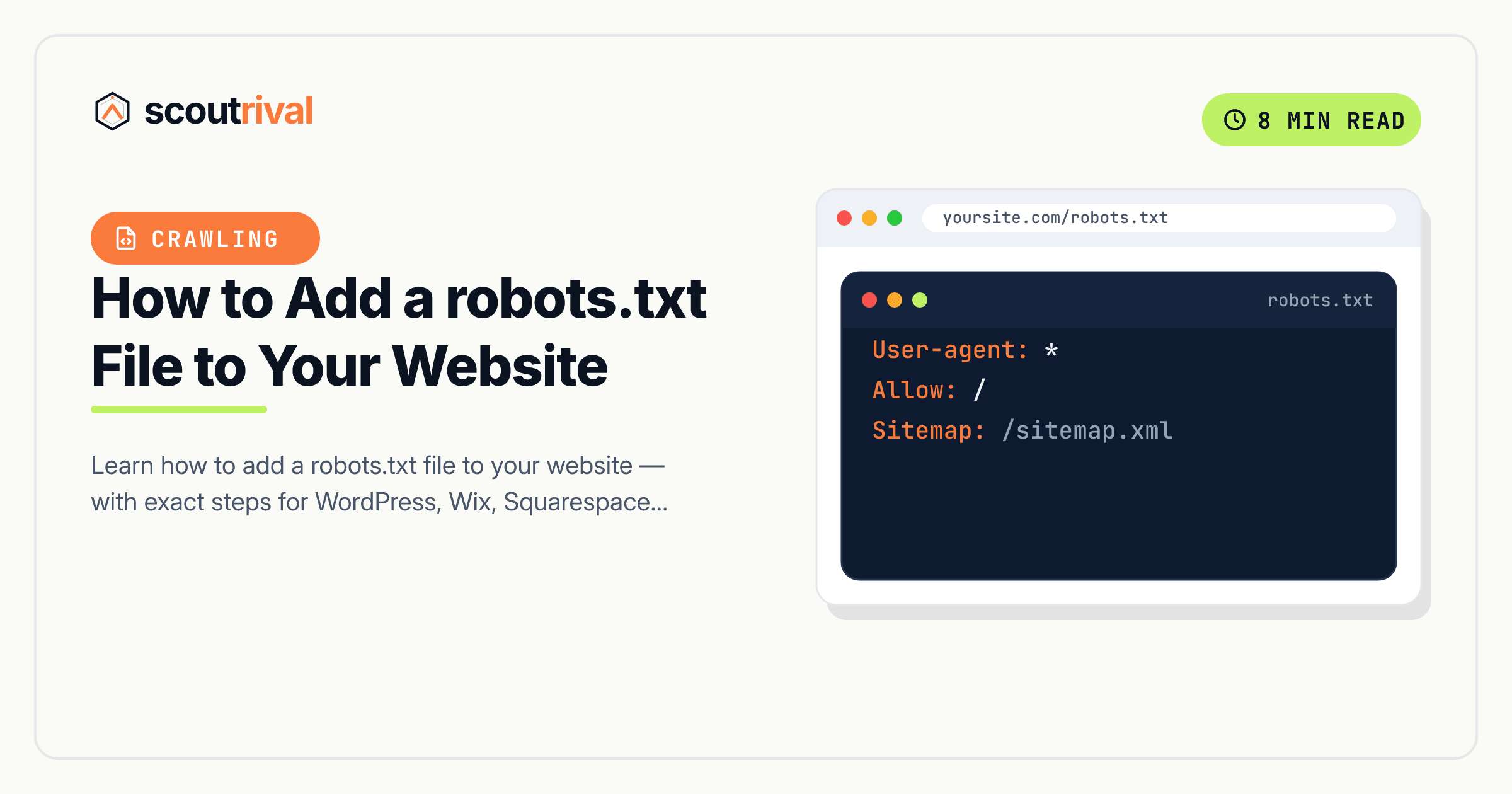
For most small business sites, a permissive file is the right call. You want search engines to crawl everything public, and you want them to find your sitemap. This three-line file does exactly that:
User-agent: *
Allow: /

Sitemap: https://yoursite.com/sitemap.xml
What each line means:
User-agent: *— the rules apply to all crawlers.Allow: /— crawlers may access the whole site.Sitemap:— the full URL of your XML sitemap (swap in your real domain).
Only add Disallow: rules for genuinely private areas (like an admin login), and never block your CSS or JavaScript — Google needs those to render your pages correctly.
How to add a robots.txt file on any platform
Pick your platform below. Every path ends the same way: a working file at yoursite.com/robots.txt.
WordPress
WordPress serves a virtual robots.txt automatically, but you’ll usually want to control it:
- If you use an SEO plugin, that’s the easiest route. In Yoast SEO, go to SEO → Tools → File editor and create or edit robots.txt there. In Rank Math, go to General Settings → Edit robots.txt.
- Paste the three-line template above (with your real sitemap URL) and save.
- No SEO plugin? Upload a plain
robots.txtfile to your site’s root folder (public_html/) using your host’s File Manager or FTP. A physical file overrides the virtual one. - Finally, check Settings → Reading and make sure “Discourage search engines from indexing this site” is unchecked — that box silently blocks everything.
Wix
Wix generates a robots.txt for you and lets you edit it in the dashboard:
- Go to your Wix dashboard → Marketing & SEO → SEO Tools.
- Open the Robots.txt Editor.
- Review the default rules, add your
Sitemap:line if it isn’t already there, and click Save. Wix publishes it automatically.
Squarespace
Squarespace creates and manages robots.txt for you, and it’s not directly editable — which is fine, because the default is already crawler-friendly. To confirm:
- Visit
yoursite.com/robots.txt— you should see Squarespace’s generated rules. - If you need to keep a specific page out of search, don’t touch robots.txt. Instead open that page’s Settings → SEO and enable “Hide this page from search engines.”
Webflow
Webflow serves a robots.txt on your custom domain, editable in project settings:
- Open Project Settings → SEO tab.
- In the robots.txt field, paste the template above (with your sitemap URL).
- Click Save changes, then Publish your site so the file goes live.
- Note: robots.txt only applies on your real domain — the
*.webflow.iostaging URL is intentionally kept out of search.
Shopify
Shopify auto-generates robots.txt, and since 2021 you can customise it with a template:
- Go to Online Store → Themes → ⋯ (three dots) → Edit code.
- Under Templates, click Add a new template and choose robots.txt.
- Shopify’s default rules are already sensible; only edit if you have a specific reason, and keep the
Sitemap:line intact. Save.
Any other website (custom or unlisted CMS)
If you hand-code your site or use a builder not listed above, add the file yourself:
- Create a plain-text file named exactly
robots.txt(all lowercase). - Paste the three-line template and save.
- Upload it to your web root — the same folder that serves your homepage — so it’s reachable at
yoursite.com/robots.txt. It must be at the root, not in a subfolder.
How to confirm it’s fixed
- Reload
https://yoursite.com/robots.txtin your browser — you should see your rules, not an error. - In Google Search Console, open the robots.txt report (under Settings) to see how Google reads your file and whether it’s valid.
- Re-run your ScoutRival SEO audit. The “Add a reachable robots.txt” item should now pass, and your Crawlability pillar score should tick up.
Common mistakes to avoid
- Blocking the whole site with
Disallow: /. This one line hides your entire website from search. If your site vanished from Google, read our guide on why your website isn’t showing on Google. - Putting the file in a subfolder. Crawlers only read robots.txt at the root.
yoursite.com/pages/robots.txtdoes nothing. - Blocking CSS or JavaScript. Google renders pages like a browser; blocking assets can hurt how it sees your layout.
- Expecting robots.txt to remove a page from Google. It controls crawling, not indexing. To keep a page out of results, use a
noindextag instead. - Forgetting the sitemap line. It’s the easiest way to speed up discovery — don’t leave it out.
The bottom line
A robots.txt file is small, but it’s the first handshake between your site and every search engine. Add the three-line starter file, drop in your real sitemap URL, confirm it loads, and you’ve cleared one of the fastest wins on your SEO checklist.
Want to know exactly which pages are missing this and other quick fixes? Run a free SEO Score with ScoutRival and get a prioritised, plain-English to-do list for your whole site.
Frequently asked questions
What is a robots.txt file used for?
Where should the robots.txt file be located?
Do I need a robots.txt file if my site is small?
Does robots.txt hide my pages from Google?
Can I edit robots.txt on Wix, Squarespace, Webflow and Shopify?
What does "User-agent: * Allow: /" mean?
How do I test my robots.txt file?
Nasir Uddin is an SEO consultant and ScoutRival's SEO & Growth Lead. He's spent years helping small businesses climb the search results — and now the AI answers too — and writes about SEO, AI-search visibility, and turning organic traffic into real growth.
Keep reading
All SEO →


Stop reading about it. Ship it this week.
ScoutRival turns competitor intel into ready-to-post content and graphics — for a fraction of an agency.