Website Not Showing on Google? How to Fix robots.txt Blocking
If your website isn't showing on Google, robots.txt may be blocking all crawlers. Here's how to find and fix it on WordPress, Wix, Squarespace, Webflow and Shopify.

On this page
If ScoutRival flagged “Stop blocking search crawlers,” your robots.txt is telling search engines to stay away from your entire site. It’s alarming, but it’s also one of the fastest problems to fix — often a single checkbox. Here’s how to find the block and clear it on any platform.
What “blocking search crawlers” actually means
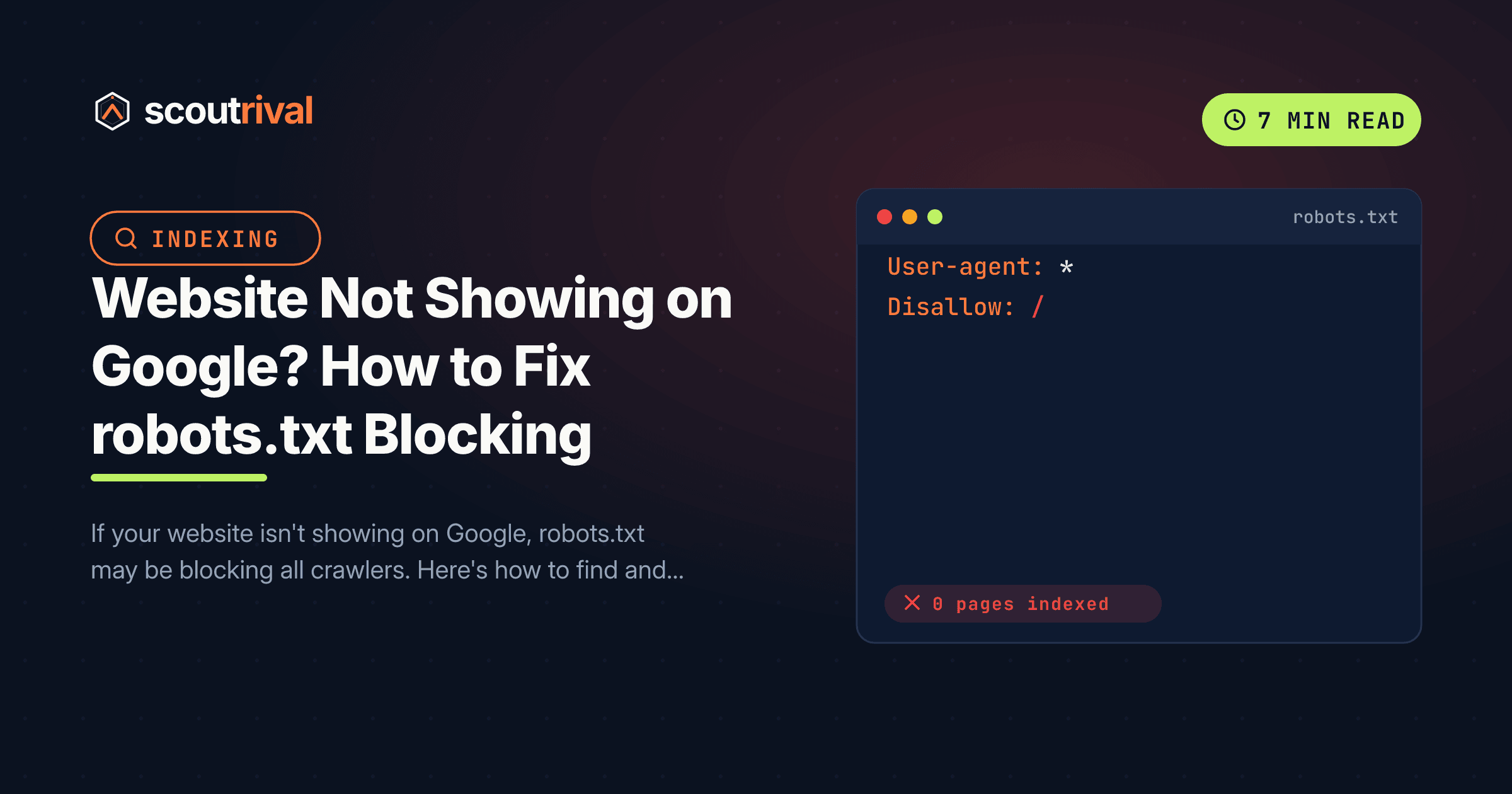
Your robots.txt file (the small text file at yoursite.com/robots.txt) can contain rules that disallow crawling. The nuclear version looks like this:
User-agent: *
Disallow: /
In plain English: “To every search engine — do not crawl anything on this site.” Google respects that instruction, so it stops requesting your pages, and over time they drop out of the index entirely. It’s the SEO equivalent of hanging a “Closed — do not enter” sign on the front door while wondering why no customers come in.
Crucially, this often happens by accident. Most site builders have a privacy setting meant for sites still under construction — and if it’s left on when you go live, it writes that Disallow: / for you.
Why this is the most urgent issue to fix
Every other SEO improvement — titles, sitemaps, content, speed — is pointless while this block is active, because search engines can’t see any of it. A blanket disallow means:
- New pages are never crawled.
- Existing pages gradually fall out of Google’s index.
- Nothing can rank, no matter how good it is.
That’s why ScoutRival scores this as a high-severity crawlability failure. If your SEO Score dropped sharply or your traffic disappeared, check this first.
How to check if your site is blocked
Two quick checks:
- Read your robots.txt. Visit
https://yoursite.com/robots.txt. If you seeDisallow: /underUser-agent: *, your whole site is blocked. - Ask Google what it sees. Search
site:yoursite.comin Google. If it returns no results (or a “no information is available for this page” note on your listing), crawling is likely blocked.
You can also confirm inside Google Search Console → Pages, where blocked URLs are reported under “Blocked by robots.txt.”
How to remove the block on any platform
Find your platform and turn the block off.
WordPress
WordPress has a built-in setting that writes the block:
- Go to Settings → Reading.
- Find “Search engine visibility” and uncheck “Discourage search engines from indexing this site.”
- Save. If you also have a physical or plugin-managed robots.txt, open it (in Yoast: SEO → Tools → File editor, or Rank Math: General Settings → Edit robots.txt) and remove any
Disallow: /line, replacing it withAllow: /.
Wix
- Open your Wix dashboard → Marketing & SEO → SEO Tools → Robots.txt Editor.
- Delete any
Disallow: /rule and make sure the file allows crawling. - Also check Settings → SEO for a “let search engines index your site” option and ensure it’s turned on. Save.
Squarespace
- Squarespace doesn’t use robots.txt for this — it uses a site-wide toggle. Go to Settings → Search Engine Indexing (or Settings → SEO) and make sure “Hide site from search engines” is off.
- Check individual pages too: open each page’s Settings → SEO and confirm “Hide this page from search engines” is off.
Webflow
- Open Project Settings → SEO tab and check the robots.txt field for a
Disallow: /rule — remove it. - Under Project Settings → SEO, make sure “Disable Webflow subdomain indexing” isn’t affecting your live domain, and that no global
noindexis set. - Click Save, then Publish so the change goes live. Remember the
*.webflow.iostaging URL is meant to stay unindexed — test on your real domain.
Shopify
- Go to Online Store → Preferences and make sure your storefront password page is disabled (a password-protected store is hidden from search).
- If you’ve added a custom
robots.txt.liquidtemplate (Online Store → Themes → Edit code), open it and remove any rule that disallows all crawlers. - Confirm your store is on a paid plan and published — trial or unpublished stores won’t be indexed.
Any other website (custom or unlisted CMS)
- Open the
robots.txtfile in your web root. - Remove
Disallow: /. If you need to hide only private areas, narrow it, for example:
User-agent: *
Allow: /
# Block private areas only — never the whole site:
Disallow: /admin/
- Also scan your page templates for a stray
<meta name="robots" content="noindex">tag, which blocks indexing separately from robots.txt.
Tell Google to come back
Removing the block stops the bleeding, but you can speed up recovery:
- In Google Search Console, use the URL Inspection tool on your homepage and click Request indexing.
- Submit your XML sitemap (Search Console → Sitemaps) so Google re-discovers your pages.
- Re-run your ScoutRival SEO audit — the “Stop blocking search crawlers” flag should clear, and your Crawlability score should jump.
Re-indexing isn’t instant; it typically takes a few days to a couple of weeks depending on your site’s size and authority.
Common mistakes to avoid
- Fixing robots.txt but leaving a
noindextag in place. These are two separate blocks — check both. - Testing on a staging URL. Builder subdomains (like
*.webflow.ioor a Shopify preview) are meant to stay unindexed. Always verify on your live domain. - Blocking everything to hide one page. Never use
Disallow: /for that — block the single path or use anoindextag on that page only. - Assuming it’s instant. Even after you fix it, give Google time to re-crawl before panicking.
The bottom line
A site that’s missing from Google almost always comes down to one accidental instruction: don’t crawl anything. Turn off the “discourage search engines” toggle, remove any Disallow: / line, request re-indexing, and your pages will start coming back.
Not sure whether it’s robots.txt, a noindex tag, or something else keeping you out of search? Run a free SEO Score with ScoutRival — it pinpoints exactly what’s blocking you and how to fix each item. New to robots.txt? Start with our guide on how to add a robots.txt file.
Frequently asked questions
Why is my website not showing up on Google?
How do I know if robots.txt is blocking my site?
How do I unblock my site in WordPress?
How long does it take for Google to re-index my site after fixing the block?
Is robots.txt blocking the same as a noindex tag?
Why is my Wix or Squarespace site not on Google?
Can a password-protected store be found on Google?
Nasir Uddin is an SEO consultant and ScoutRival's SEO & Growth Lead. He's spent years helping small businesses climb the search results — and now the AI answers too — and writes about SEO, AI-search visibility, and turning organic traffic into real growth.
Keep reading
All SEO →
Stop reading about it. Ship it this week.
ScoutRival turns competitor intel into ready-to-post content and graphics — for a fraction of an agency.