How Many H1 Tags Per Page Is Best for SEO?
How many H1 tags per page is best for SEO? The answer is one. Here's why, plus how to find and fix missing or duplicate H1s on every major CMS.

On this page
If ScoutRival’s SEO Score flagged “Use exactly one H1 per page,” it found a page with no H1 at all, or with several competing H1s. Either way it’s a quick, safe fix that sharpens how clearly search engines understand your page. This guide explains the ideal number, why it matters, and how to correct it on every major platform — no coding required for most sites.
What is an H1 tag?
An H1 tag is the top-level heading of a web page — the biggest, most important headline that tells readers (and search engines) what the whole page is about. In HTML, headings run from <h1> (most important) down to <h6> (least important), forming an outline of the page.
The clearest analogy is a document or a newspaper. The H1 is the headline of the article — there’s only one. Everything below it (H2s, H3s) works like section titles and sub-section titles, breaking the content into a logical hierarchy underneath that single headline. A newspaper with three competing front-page headlines would confuse you about what the story actually is — and that’s exactly the confusion multiple H1s create for a search engine.
In one sentence: an H1 tag is a page’s single main heading, and using exactly one per page gives search engines an unambiguous signal about the page’s primary topic.
Here’s the pattern you’re aiming for in the page’s code:
<h1>The single main heading of this page</h1>
<h2>A supporting section</h2>
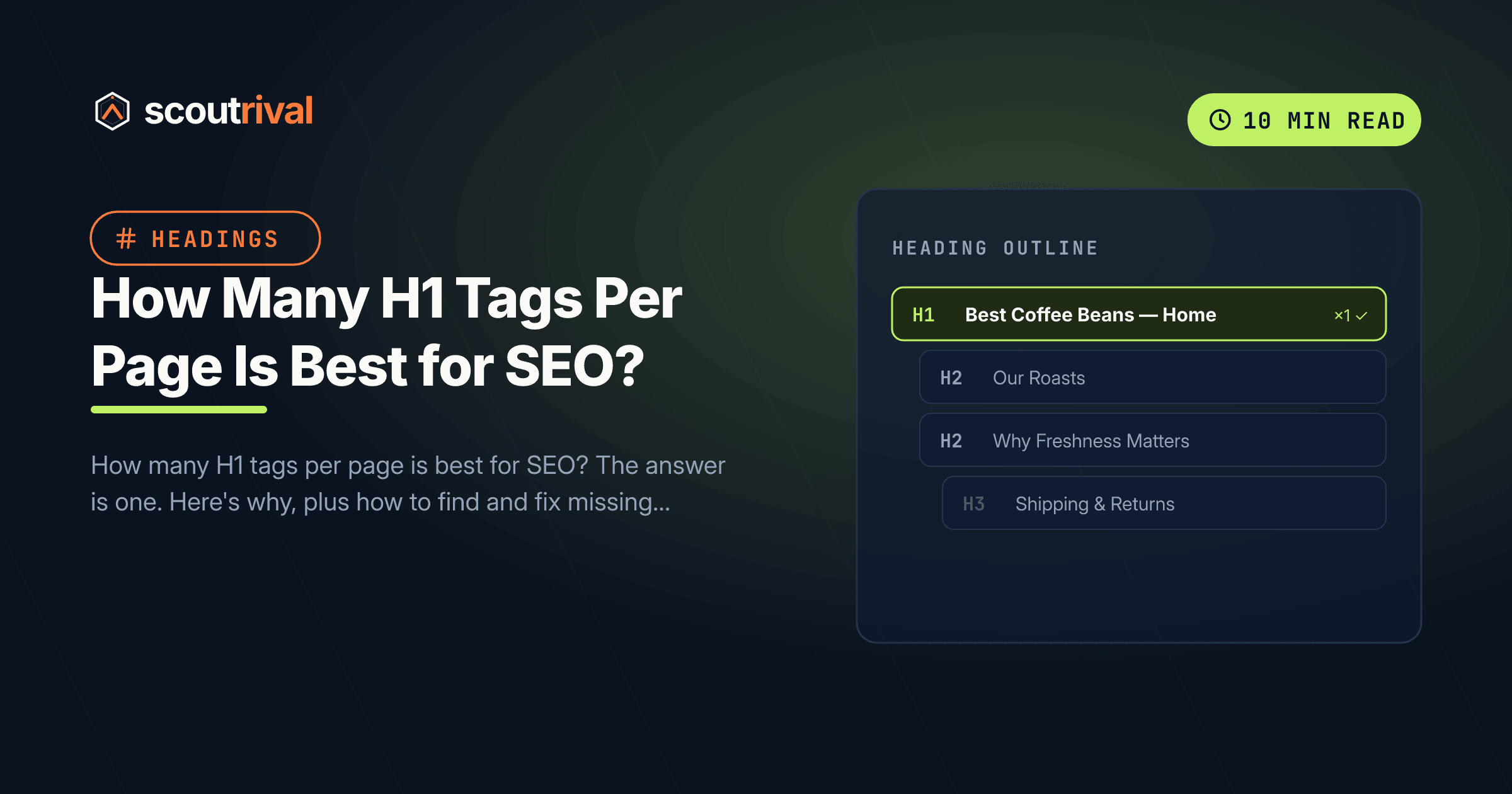
One H1 at the top, then H2s (and H3s beneath those) for each section — a clean outline that steps down one level at a time.
Why the number of H1 tags matters for your SEO
Search engines read your headings to understand a page’s structure and subject. The H1 carries extra weight because it’s the page’s headline. Get the count wrong and you blur that signal in two ways:
- A missing H1 leaves the page without its strongest topical cue. Engines fall back on other clues (the title tag, body text), but you’ve given up a free, high-value signal about what the page is about.
- Multiple H1s split the emphasis. If a page shouts three “main headlines,” none of them stands out, and the topical focus is watered down. It also often signals that headings are being used for styling rather than structure — a sign of messy page markup.
There’s an accessibility dimension too: screen-reader users navigate by headings, and a clear single H1 followed by an orderly outline makes your page far easier to move through. Google increasingly rewards well-structured, accessible pages, so the two goals line up.
To be clear, Google has stated that using more than one H1 won’t get you penalised, and modern HTML technically allows it. But “won’t hurt much” isn’t the same as “best practice.” One H1 per page remains the cleanest, safest, most widely recommended approach — and it’s what ScoutRival’s SEO Score checks for. When a page has zero or several H1s, the check flags it, and the fix below clears it.
How to check if you have this problem
The 30-second manual check: Open the page and right-click → View page source (or Inspect). Press Ctrl/Cmd+F and search for <h1. Count the results:
- Zero matches → the page has no H1. Add one.
- Exactly one → you’re good.
- Two or more → you have duplicate H1s to demote.
A quicker visual clue: look at the page and ask, “What’s the single biggest, most important headline here?” If two different elements both look like the title (for example, your logo text and the page heading), one of them may be a stray H1.
The tool check: Running ScoutRival’s SEO Score inspects the headings on every page it audits and tells you exactly which pages are missing an H1 or have more than one — so you don’t have to check each page’s source by hand. It’s the fastest way to find every offender across your site.
How to fix it — step by step
The goal on every platform is the same: one block styled as Heading 1 (usually the page’s title), with every other big heading set to Heading 2 or lower. In most visual editors you never touch code — you just apply the right heading style. Here’s where to do it.
For hand-coded sites, the target markup is simply:
<h1>The single main heading of this page</h1>
<h2>A supporting section</h2>
WordPress
In the WordPress block editor (Gutenberg):
- Edit the page or post. Click the block that should be your main title.
- In the block toolbar, open the Heading level dropdown (or the block settings) and make sure only that one block is set to H1.
- Click any other heading that’s mistakenly an H1 and change it to H2 or H3 based on its role.
- Watch out for your theme: many themes automatically output the post title as the H1. If so, don’t add a second H1 inside your content — start your in-content headings at H2. Check by viewing the source as described above.
- Update to save.
Wix
- In the Wix Editor, click the text element that should be your main heading.
- Open the text style dropdown in the toolbar and choose Heading 1 for that one element only.
- Set every other prominent heading to Heading 2 / Heading 3 as appropriate.
- If a heading looks too big or small, don’t change its heading level — adjust the font size in the same panel instead. Publish when done.
Squarespace
- Click into the text block that should be the page’s main heading.
- In the formatting toolbar, apply the Heading 1 style to that block only.
- Change any other Heading 1 blocks to Heading 2 or Heading 3 to match their role.
- Note that some Squarespace layouts use the site title or a banner heading as an H1 — check the source so you don’t end up with two. Adjust sizing with the style editor, not by switching heading levels.
Webflow
- Select the element you want as the main heading.
- In the Settings panel (D) or the element’s tag dropdown, set its HTML tag to H1 — and confirm no other element on the page is also an H1.
- Change extra H1s to H2/H3 via the same tag selector.
- In Webflow you fully control tags, so keep them semantic: use the Style panel to change size or weight, and reserve the H1 tag for the single page headline. Publish to go live.
Shopify
- Editing a page, blog post, or product description in the rich-text editor, highlight the line that should be the main heading and choose Heading 1 from the format dropdown — for one line only.
- Set other headings to Heading 2/Heading 3.
- Be aware that many Shopify themes already render the product or page title as the H1. If yours does, start your in-content headings at H2 to avoid a duplicate. Check the theme’s templates or the page source if unsure.
Any other website (custom or unlisted CMS)
If you hand-code your site or use a builder not listed above, edit the markup directly:
- Open the page (or the template that renders it) and locate the headings.
- Ensure there is a single
<h1>containing the page’s main topic, near the top of the content. - Change any additional
<h1>tags to<h2>–<h6>based on their role in the outline, stepping down one level at a time. - To change how a heading looks, use CSS (font-size, weight) — never demote or promote a heading level just to resize it. The target structure:
<h1>The single main heading of this page</h1>
<h2>A supporting section</h2>
How to confirm it’s fixed
- View the page source again and search for
<h1. You should now find exactly one match, containing your main topic. - Check the outline flows logically: H1 → H2 → H3, with no big jumps. (A free browser heading-outline extension makes this easy to eyeball.)
- Re-run your ScoutRival SEO audit. The “Use exactly one H1 per page” item should now pass, and your On-page pillar score should improve.
Common mistakes to avoid
- Choosing a heading level by its size. If a heading looks too big, resize it with CSS — don’t downgrade an H1 to an H2 (or upgrade an H2 to an H1) just to change the look.
- Forgetting the theme’s built-in H1. Many themes already output the page title as an H1. Adding another in your content creates a duplicate — start in-content headings at H2 when that’s the case.
- Turning your logo into an H1. A logo or site name in the header is sometimes coded as an H1 by mistake, competing with the real page heading. Keep the H1 for the page’s actual title.
- Having no H1 at all. Skipping the H1 to “keep the design clean” throws away a strong topical signal. You can style it to be subtle, but the page should still have one.
- Skipping heading levels. After you fix the H1 count, make sure the rest steps down in order — see our guide on the correct heading structure for SEO.
The bottom line
The best number of H1 tags per page is one — a single, descriptive headline that tells search engines and readers exactly what the page is about, with H2s and H3s organising everything beneath it. Add an H1 if one’s missing, demote the extras, and change appearance with CSS rather than heading levels. It’s a five-minute fix that makes every page clearer to both Google and your visitors.
Want to see which of your pages have a missing or duplicate H1? Run a free SEO Score with ScoutRival for a prioritised, plain-English fix list across your whole site. Once your H1s are sorted, tidy up the rest of your headings with our guide on the correct heading structure for SEO.
Frequently asked questions
How many H1 tags should a page have?
Is it bad to have multiple H1 tags?
What is an H1 tag?
Does the H1 tag affect SEO rankings?
What happens if a page has no H1?
Can the H1 and the title tag be different?
How do I change a heading's size without changing its level?
Nasir Uddin is an SEO consultant and ScoutRival's SEO & Growth Lead. He's spent years helping small businesses climb the search results — and now the AI answers too — and writes about SEO, AI-search visibility, and turning organic traffic into real growth.
Keep reading
All SEO →


Stop reading about it. Ship it this week.
ScoutRival turns competitor intel into ready-to-post content and graphics — for a fraction of an agency.