How to Add a Canonical Tag to Fix Duplicate URLs
Learn how to add a canonical tag to fix duplicate URLs — with exact steps for WordPress, Wix, Squarespace, Webflow, Shopify and custom sites, plus a copy-paste snippet.

On this page
If ScoutRival’s SEO Score flagged “Add canonical tags,” it means one or more of your pages is missing a canonical tag — the small signal that tells Google which URL to treat as the real, indexable version. It’s a quick fix that protects you from duplicate-content confusion, and this guide walks you through it on every major platform, no coding required.
What is a canonical tag?
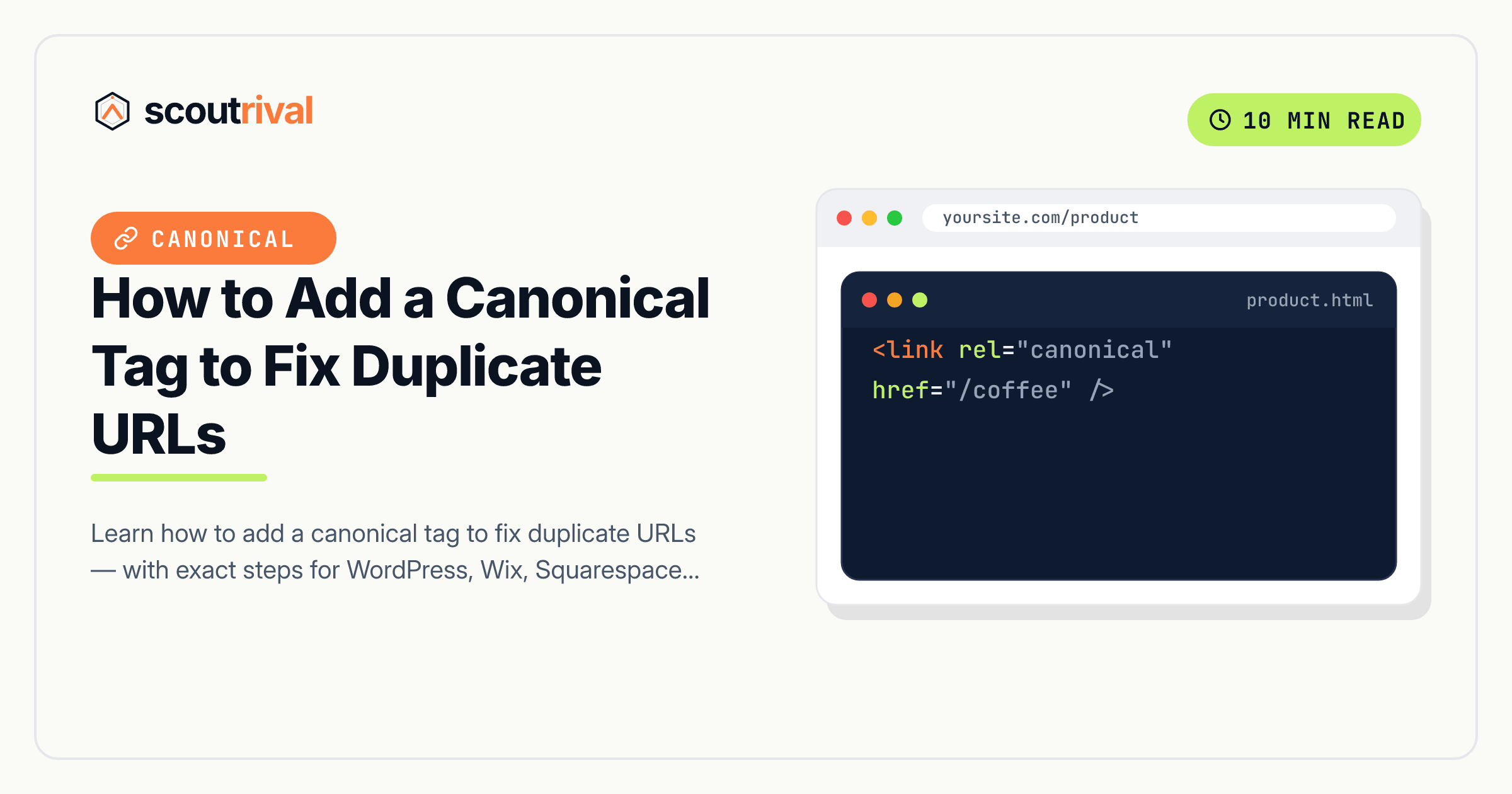
A canonical tag is a line of HTML in a page’s <head> that names the preferred (“canonical”) URL for that page’s content. It looks like this: <link rel="canonical" href="https://yoursite.com/the-preferred-url">. When a search engine finds the same or very similar content at more than one address, the canonical tag tells it, “This one is the original — index and rank this URL.”
Think of it like the forwarding address you leave when you have several mailboxes. Your content might be reachable at yoursite.com/product, www.yoursite.com/product, and yoursite.com/product?ref=email — three doors into the same room. The canonical tag is the note on each door saying, “The official address is this one.” Google then consolidates all the credit onto that single URL instead of scattering it across three.
In one sentence: a canonical tag is an HTML signal that declares the primary URL for a page so duplicate versions don’t compete or split their ranking signals.
Why canonical tags matter for your SEO
Duplicate URLs are more common than most site owners realise. The same page can be reachable with and without www, with http and https, with a trailing slash and without, or with tracking parameters tacked on by ads and email campaigns. To a search engine, each of those is potentially a separate page showing the same content — and that causes real problems:
- Split ranking signals. Links and authority that should all point to one page get divided among its duplicates, so none of them ranks as well as the combined version would.
- Wasted crawl budget. Search engines spend time crawling several copies of the same thing instead of your other pages.
- The wrong URL ranking. Without guidance, Google picks which version to show — and it might choose an ugly parameter URL instead of your clean one.
A canonical tag solves all three by consolidating everything onto the URL you choose. It’s a medium-severity, on-page fix that’s easy to get right. ScoutRival’s SEO Score checks whether each page has a canonical tag, because a missing one leaves these decisions up to chance.
How to check if you have this problem
You can check any page in about 30 seconds.
The quick manual check: open the page, right-click, and choose View Page Source (or press Ctrl+U / Cmd+Option+U). Use your browser’s find (Ctrl+F / Cmd+F) to search for canonical. You’re looking for a line like:
<link rel="canonical" href="https://yoursite.com/this-page">
- You find one pointing at the correct, clean URL → you’re good.
- You find nothing, or it points at the wrong URL (a different page, an
http://version, or a parameter-laden address) → that’s what we’re fixing.
The tool check: ScoutRival’s SEO Score scans every crawled page and flags the ones missing a canonical tag, so you don’t have to inspect each page by hand. It also helps you spot the clean URL each page should point to.
How to fix it — step by step
On every platform the goal is the same: each page should carry a self-referencing canonical pointing to its own clean, preferred URL, and any true duplicates should point to that single canonical version. Here’s the snippet you’re aiming for (swap in your real URL):
<link rel="canonical" href="https://yoursite.com/the-preferred-url">
WordPress
WordPress on its own doesn’t add canonicals, but every major SEO plugin does — and lets you override them:
- Install or open an SEO plugin such as Yoast SEO or Rank Math (both add self-referencing canonicals automatically to every page).
- To set a custom canonical on a specific page, edit that page and scroll to the plugin’s SEO box. In Yoast, open the Advanced section and use the “Canonical URL” field. In Rank Math, open the Advanced tab and fill in “Canonical URL.”
- Enter the full, absolute HTTPS URL of the version you want indexed, then update the page.
- Leave the field blank on normal pages — the plugin’s automatic self-canonical is exactly right.
Wix
Wix adds a self-referencing canonical to your pages automatically and lets you override it per page:
- Go to your page in the editor, then open SEO (Google) settings → Advanced SEO → Additional tags, or open SEO Tools in the dashboard.
- To point a page at a different canonical, add or edit the canonical tag in the Additional tags / custom meta tags area.
- Paste the full HTTPS URL of the preferred version and save. For most pages, leave Wix’s automatic canonical as-is.
Squarespace
Squarespace generates canonical tags for your pages automatically:
- In most cases there’s nothing to add — each page already points to its own clean URL.
- If you need a custom canonical (for example, to consolidate a duplicate onto another page), open Page Settings → Advanced and add a canonical
<link>in the Page Header Code Injection field, or use site-wide Code Injection for template-level control. - Paste the absolute HTTPS URL of the version you want indexed and save.
Webflow
Webflow lets you set canonical tags in each page’s settings:
- Open Page Settings for the page (the gear icon next to the page in the Pages panel).
- Scroll to the Custom Code / Inside
<head>tag area, or use the dedicated Canonical URL field if your project shows one. - Add the canonical link with the full HTTPS URL, save, and publish so it goes live.
- For a site-wide default, add the tag in Project Settings → Custom Code and use Webflow’s dynamic field so each page canonicalises to itself.
Shopify
Shopify adds canonical tags automatically, which is important because product and collection URLs can appear in several forms:
- Shopify’s default theme already outputs a self-referencing canonical on products, collections, pages and blog posts — usually you don’t need to touch it.
- To customise, go to Online Store → Themes → ⋯ → Edit code, open theme.liquid, and find the
<link rel="canonical">line in the<head>. - If you’re consolidating duplicates, ensure the canonical points to the clean product or collection URL rather than a variant or filtered version. Save carefully — this file affects every page.
Any other website (custom or unlisted CMS)
If you hand-code your site or use a builder not listed above, add the tag yourself:
- Open the page’s template and locate the
<head>section. - Add a canonical link pointing to that page’s clean, preferred URL. Use an absolute HTTPS URL, not a relative path:
<link rel="canonical" href="https://yoursite.com/the-preferred-url">
- Make sure every page emits a self-referencing canonical, and point genuine duplicates (parameter URLs, print versions) at the main version. Keep it inside the
<head>, before the closing</head>tag.
How to confirm it’s fixed
- Reload the page and view source (Ctrl+U / Cmd+Option+U), then search for
canonical— confirm it now points to the correct, clean HTTPS URL. - In Google Search Console, use the URL Inspection tool on the page; under “Indexing” it shows the “Google-selected canonical.” Ideally it matches the one you set.
- Re-run your ScoutRival SEO audit. The “Add canonical tags” item should now pass, and your On-page pillar score should improve.
Common mistakes to avoid
- Pointing every page at your homepage. A canonical should point to the same content’s preferred URL — not the homepage. Canonicalising everything to
/can drop your inner pages from search. - Using relative or HTTP URLs. Always use an absolute
https://URL. A relative path or anhttp://version sends a weaker, sometimes conflicting signal. - Canonicalising to a redirected or 404 page. The canonical target must be a live, indexable page that returns 200. If you’ve moved content, fix the target first. (See our guide on broken links and redirects.)
- Contradicting the canonical with noindex. Don’t put both a canonical to another page and a
noindexon the same URL — the signals conflict. Pick one approach per page. - Forgetting
wwwvs non-wwwconsistency. Decide on one preferred host (with or withoutwww) and make sure your canonicals — and your redirects — all agree.
The bottom line
A canonical tag is a tiny line of code that quietly protects your rankings. It tells Google which URL is the real one, consolidates your link value onto a single page, and stops duplicate versions from competing. Most platforms add self-referencing canonicals for you — your job is to confirm they’re correct, use absolute HTTPS URLs, and point any true duplicates at the version you want to win.
Want to know which of your pages are missing canonicals or carrying other on-page issues? Run a free SEO Score with ScoutRival and get a prioritised, plain-English fix list for your entire site.
Frequently asked questions
What is a canonical tag?
How do I add a canonical tag?
What does a canonical tag look like?
Do I need a canonical tag on every page?
Should the canonical point to the homepage?
What is the difference between a canonical tag and a redirect?
Can a canonical tag fix duplicate content?
Nasir Uddin is an SEO consultant and ScoutRival's SEO & Growth Lead. He's spent years helping small businesses climb the search results — and now the AI answers too — and writes about SEO, AI-search visibility, and turning organic traffic into real growth.
Keep reading
All SEO →

Stop reading about it. Ship it this week.
ScoutRival turns competitor intel into ready-to-post content and graphics — for a fraction of an agency.