How to Add a Favicon to Your Website (Step-by-Step)
Learn how to add a favicon to your website — the small icon in browser tabs and search results — with exact steps for WordPress, Wix, Squarespace, Webflow, Shopify and custom sites.

On this page
If ScoutRival’s SEO Score flagged “Add a favicon,” it means your site is missing the little icon that browsers and search engines display next to your name. It’s a fast, one-time fix that makes your site look polished everywhere it appears. This guide walks you through it on every major platform, no coding required.
What is a favicon?
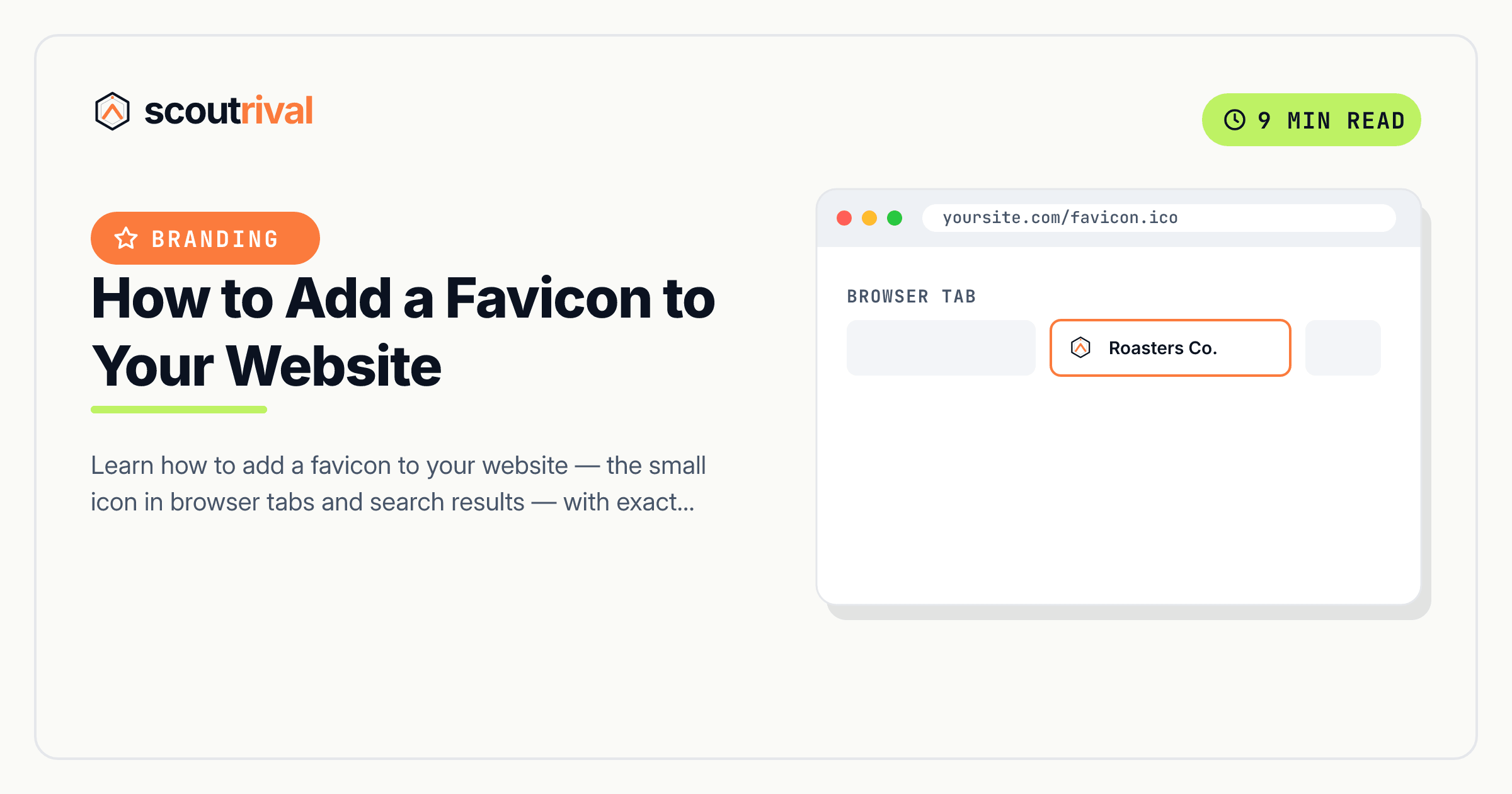
A favicon (short for “favorite icon”) is a small square image — usually your logo or a simple brand mark — that browsers show in the tab, the bookmarks bar, browser history, and next to your page’s title in Google’s mobile and desktop search results. It’s a tiny asset, but it’s front-and-centre in a lot of high-visibility places.
Think of it as the logo on a book’s spine. When your tab is one of twenty crammed along the top of a browser, the favicon is how someone finds your site at a glance — the same way you spot a familiar book on a crowded shelf by its spine, not its cover.
In practical terms, a favicon is one or more small icon files (like favicon.ico and PNG versions) that live at your site’s root and are referenced in the page’s <head>. Here’s the standard link:
<link rel="icon" href="/favicon.ico" sizes="any">
<link rel="icon" type="image/png" href="/favicon-512.png" sizes="512x512">
Why a favicon matters for your SEO
A favicon isn’t a ranking factor — but it plays a real role in how your brand is perceived and clicked:
- It shows up in Google search results. Google displays your favicon next to your listing on mobile (and in some desktop layouts). A crisp, recognisable icon helps your result stand out; a blank one makes it look neglected.
- It builds brand recognition and trust. People who see your icon across tabs, bookmarks and search start to recognise it. That familiarity nudges click-through and return visits — small effects that add up.
A missing favicon leaves a generic placeholder in all those spots, which quietly undercuts the professional impression the rest of your site is working to build. ScoutRival’s SEO Score checks whether your site serves a valid favicon. If it’s missing, the check fails, and the steps below clear it.
How to check if you have this problem
This takes about 15 seconds.
The quick manual check: open your website in a browser and look at the tab at the top. If you see your logo or icon, you have a favicon. If you see a generic globe, a blank page icon, or the browser’s default placeholder, you don’t.
The direct check: type https://yoursite.com/favicon.ico into your address bar. If your icon loads, a favicon file exists at the root. If you get a 404 or blank page, it may be missing or only linked in the HTML (which can still be fine — check the tab too).
The tool check: run your site through ScoutRival’s SEO Score. It confirms whether a valid favicon is being served and flags it if not, so you don’t have to guess.
How to fix it — step by step
First, prepare your icon: a square image, at least 48×48 pixels — but ideally a high-resolution 512×512 version so it stays sharp everywhere. A simple, bold mark (your logo, a monogram, or a single symbol) reads far better at tiny sizes than a detailed full logo. A free favicon generator can turn one image into all the sizes and formats you need. Then pick your platform below.
WordPress
WordPress calls the favicon a Site Icon, and it’s built into the Customizer:
- Go to Appearance → Customize → Site Identity (or Settings → General in some setups).
- Under Site Icon, click Select site icon and upload a square image at least 512×512 pixels.
- Crop if prompted, then click Publish. WordPress automatically generates the favicon and the various sizes browsers and phones need.
Wix
Wix handles the favicon from your site’s settings:
- Open your Wix dashboard → Settings.
- Find the Favicon option (under Website Settings on most plans — note a favicon may require a paid plan and a connected domain).
- Upload your square icon and Save. Wix serves it automatically across your site.
Squarespace
Squarespace calls it a Browser Icon:
- In the Squarespace editor, go to Settings → General → Browser Icon (Favicon), or Design → Browser Icon depending on your version.
- Upload a square image (Squarespace recommends at least 100×100; use larger for sharpness).
- Save. The icon appears in browser tabs and search automatically.
Webflow
Webflow has dedicated favicon fields in project settings:
- Open Project Settings → General, and scroll to the Favicon & Webclip section.
- Upload your Favicon (32×32 minimum; a larger square is fine) and the Webclip (256×256, used when someone saves your site to a phone home screen).
- Click Save Changes, then Publish your site so the icon goes live.
Shopify
Shopify sets the favicon through the theme editor:
- Go to Online Store → Themes → Customize.
- Open Theme settings → Favicon (the exact label varies slightly by theme).
- Upload a square image (Shopify uses 32×32; a 512×512 source scales down cleanly) and Save. It applies across your storefront.
Any other website (custom or unlisted CMS)
If you hand-code your site or use an unlisted builder, add the favicon yourself:
- Create your icon files — a classic
favicon.icoplus a high-resolution PNG (a favicon generator produces both). - Upload them to your web root (the same folder that serves your homepage), so
favicon.icois reachable atyoursite.com/favicon.ico. - Link them in the
<head>of your base template:
<link rel="icon" href="/favicon.ico" sizes="any">
<link rel="icon" type="image/png" href="/favicon-512.png" sizes="512x512">
- Save and redeploy. Modern browsers will find
favicon.icoat the root even without the link tags, but adding them (and a high-res PNG) gives you crisp icons everywhere.
How to confirm it’s fixed
- Hard-refresh a browser tab on your site (Ctrl/Cmd+Shift+R) — browsers cache favicons aggressively, so a normal reload may show the old one. Your icon should now appear in the tab.
- Visit
https://yoursite.com/favicon.ico(or your PNG URL) directly to confirm the file loads. - For search results, note that Google needs to re-crawl your site before your favicon shows there — it can take a few days. You can nudge it by requesting indexing of your homepage in Google Search Console.
- Re-run your ScoutRival SEO audit. The “Add a favicon” item should now pass, and your Structured Data & Richness pillar score should tick up.
Common mistakes to avoid
- Using a detailed image at tiny size. A full logo with fine text turns to mush at 16×16. Use a simplified, bold mark.
- Uploading a non-square image. Favicons are square. A rectangular source gets awkwardly cropped or squished.
- Expecting instant search results. Browser tabs update right away, but Google only shows your favicon after it re-crawls — give it a few days.
- Not hard-refreshing to test. Browsers cache favicons hard. If the old icon (or none) still shows, hard-refresh or check in a private window.
- Blocking the icon or its folder in robots.txt. Google needs to fetch your favicon to display it, so don’t block the root or the icon file.
The bottom line
A favicon is one of the smallest assets on your site and one of the most visible — it’s your brand mark in every tab, bookmark, and search listing. Make a clean square icon, upload it in your platform’s branding settings (or link it in your HTML), hard-refresh to confirm, and you’ve cleared a quick, polish-adding item off your SEO checklist.
Favicons live in the same family of “how your brand shows up” tags as your social preview images — see our guide on open graph image size and how to add og:image. And to catch every small win like this across your whole site, run a free SEO Score with ScoutRival for a prioritised, plain-English to-do list.
Frequently asked questions
What is a favicon?
What size should a favicon be?
How do I add a favicon in WordPress?
Why isn't my favicon showing in the browser tab?
Does a favicon help SEO?
How long until my favicon appears in Google search results?
What format should a favicon be?
Nasir Uddin is an SEO consultant and ScoutRival's SEO & Growth Lead. He's spent years helping small businesses climb the search results — and now the AI answers too — and writes about SEO, AI-search visibility, and turning organic traffic into real growth.
Keep reading
All SEO →
Stop reading about it. Ship it this week.
ScoutRival turns competitor intel into ready-to-post content and graphics — for a fraction of an agency.