How to Improve Core Web Vitals (LCP, INP & CLS) — Step-by-Step
Learn how to improve Core Web Vitals (LCP, INP, CLS) for a faster site — with exact steps for WordPress, Wix, Squarespace, Webflow, Shopify and custom sites.

On this page
If ScoutRival’s SEO Score flagged “Improve Core Web Vitals,” it means real visitors are experiencing your pages as slow to load, slow to respond, or visually unstable. This is one of the higher-impact fixes on your checklist because Google uses these scores when deciding how to rank you. The reassuring part: the three vitals almost always trace back to a short list of causes, and most are fixable in an afternoon.
What are Core Web Vitals?
Core Web Vitals are a set of three specific metrics from Google that measure the quality of a real user’s experience on a web page — how fast it loads, how quickly it responds to input, and how stable it is visually. Together they form Google’s standard, human-centred definition of a “good” page experience.
Think of it like a first impression at a shop. LCP is how long you wait at the door before you can actually see the products (loading). INP is how quickly a staff member reacts when you ask a question (responsiveness). CLS is whether the shelves stay put or the floor shifts under you as you reach for something (stability). A great shop is quick to open, quick to respond, and doesn’t move things around while you’re mid-reach — and that’s exactly what these three scores reward.
Here’s what each one measures:
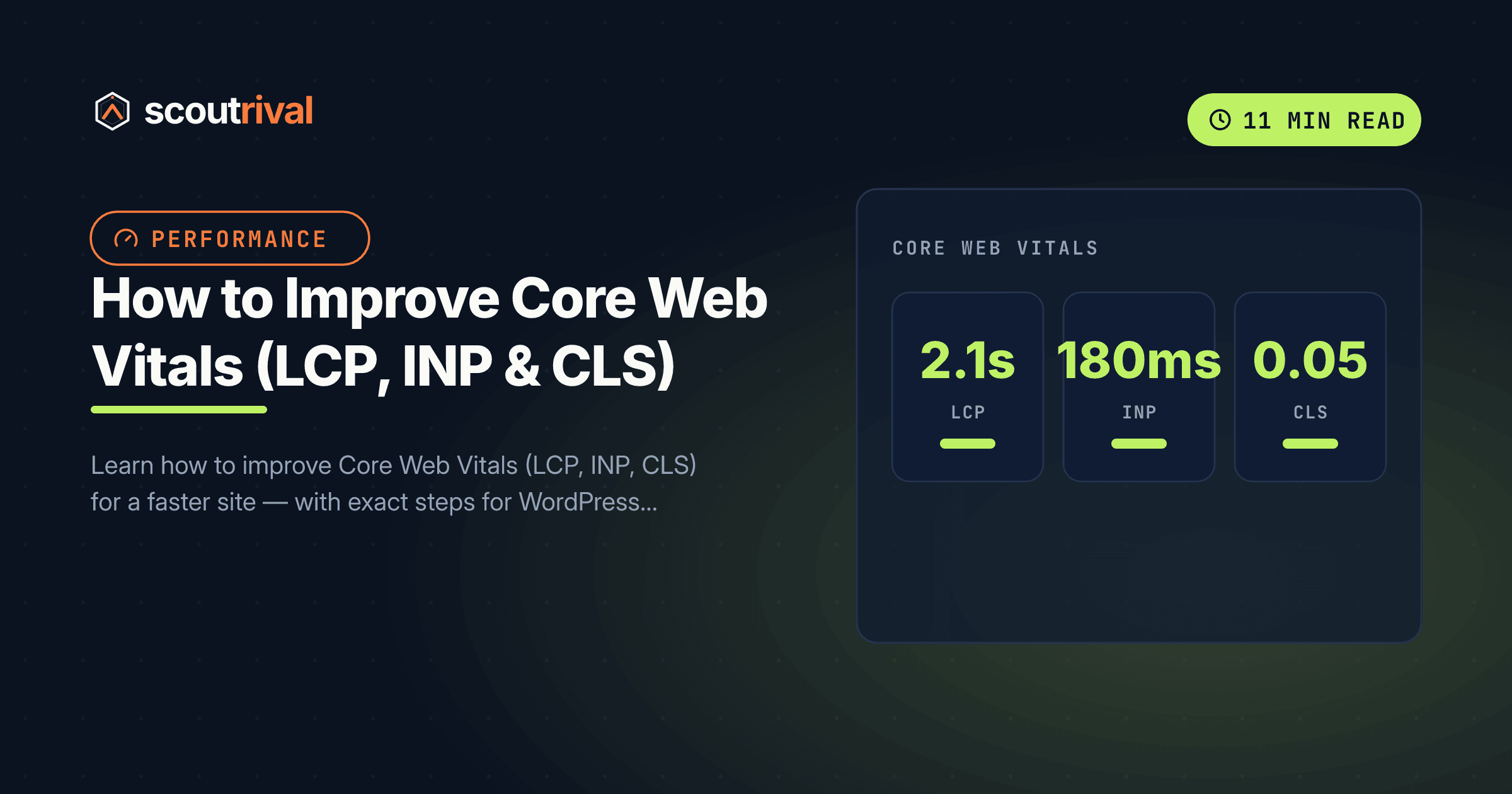
- LCP — Largest Contentful Paint. How long until the biggest visible element (usually your hero image or headline) has loaded. Target: under 2.5 seconds.
- INP — Interaction to Next Paint. How quickly the page visibly responds after you tap, click, or type. Target: under 200 milliseconds. (INP replaced the older “First Input Delay” metric in 2024.)
- CLS — Cumulative Layout Shift. How much the content jumps around unexpectedly as the page loads (the annoying moment a button moves just as you go to tap it). Target: under 0.1.
Why Core Web Vitals matter for your SEO
Core Web Vitals sit at the intersection of two things Google cares deeply about: ranking and user satisfaction.
- They’re a direct ranking signal. Google folds Core Web Vitals into its “page experience” signals. When two pages are otherwise similar, the one with the better vitals has an edge in search results.
- They drive bounce and conversions. A page that loads slowly, reacts sluggishly, or jumps around frustrates people. Studies consistently show that as loading time and instability rise, more visitors abandon the page — and abandoned visits don’t convert.
- They reflect the whole picture. Because the vitals measure real users, improving them tends to improve everything else at once: perceived speed, accessibility, and trust.
ScoutRival’s SEO Score checks your Core Web Vitals and flags this as a high-severity item in the Technical & Performance pillar when your LCP, INP, or CLS falls below Google’s “good” thresholds. Clearing it can move your score meaningfully because of that severity weighting.
How to check if you have this problem
Two ways to see your real numbers:
- The 30-second manual check. Run your page through Google PageSpeed Insights. At the top, the “Discover what your real users are experiencing” panel shows your field data for LCP, INP, and CLS with a green/orange/red rating for each. Green on all three means you pass; any orange or red is what to fix.
- The ongoing check. In Google Search Console, open the Core Web Vitals report (under Experience). It groups your URLs into “Good,” “Needs improvement,” and “Poor,” so you can see which pages and which metric to prioritise.
Then let ScoutRival track it site-wide: re-run your SEO audit and open the “Improve Core Web Vitals” item to see how your pages score and which vital is dragging you down.
How to fix it — step by step
Almost every Core Web Vitals problem comes down to three fixable causes. Fix the matching one:
- Slow LCP → your hero image or main content is heavy or loads late. Compress it, serve modern formats (WebP/AVIF), and preload it.
- Slow INP → too much JavaScript blocks the page from responding. Defer non-essential scripts and remove unused ones.
- High CLS → images, ads, or embeds load without reserved space and push content around. Set explicit width and height on media.
Here’s how on each platform.
WordPress
WordPress gives you the most control — and a good caching/optimisation plugin does most of the work:
- LCP: Install an image plugin like ShortPixel or Smush to compress images and serve WebP automatically. Use a caching plugin (WP Rocket, LiteSpeed Cache) to enable lazy-loading for below-the-fold images while excluding your hero image so it loads immediately.
- INP: In your caching plugin, turn on “defer JavaScript” and “delay JavaScript execution.” Then audit plugins — each one can add scripts; deactivate anything you don’t use.
- CLS: Make sure your theme and images specify width and height (most current themes do). Avoid inserting ads or embeds that push content down after load.
- Add a CDN (many plugins integrate Cloudflare) to speed up delivery of every asset.
Wix
Wix handles compression, a CDN, and modern image formats automatically, so your job is mostly good page design:
- LCP: Keep your hero section light — avoid autoplay video backgrounds and enormous full-width images at the very top. Upload appropriately-sized images rather than huge originals.
- INP: Limit the number of heavy apps and third-party embeds on a single page; each adds JavaScript. Remove unused apps in your dashboard.
- CLS: Use Wix’s built-in layout tools and avoid stacking elements that load in late (like certain third-party widgets) above your main content, which can shove it down.
Squarespace
Squarespace optimises and serves images through its own CDN automatically, so focus on lightening each page:
- LCP: Avoid video backgrounds and oversized banner images on the first screen. Squarespace resizes images for you, but starting from a smaller, well-compressed file still helps.
- INP: Trim custom code in Settings → Advanced → Code Injection and remove unnecessary third-party scripts and chat widgets — these are the main source of interaction delay.
- CLS: Reserve space by using Squarespace’s native blocks rather than injecting custom embeds that load in and push content around. Keep index pages from stacking too many late-loading sections.
Webflow
Webflow publishes fast static pages on a global CDN, and its settings cover most vitals work:
- LCP: In Project Settings → Publishing / SEO, ensure image optimisation (responsive images / WebP) is on. For your hero image, avoid lazy-loading it so it appears immediately.
- INP: Keep custom code in Project Settings → Custom Code minimal, and load non-essential scripts with the
deferattribute. - CLS: Set fixed dimensions on image and video elements in the Designer, and be careful with interactions/animations that reposition content after load.
Shopify
Shopify runs on fast, cached infrastructure; on a store, apps and theme weight are the usual vitals culprits:
- LCP: Use a lean, current theme and appropriately-sized images. Compress hero and product images before uploading (or use an image-optimisation app), and avoid slideshow banners with several large images at the top.
- INP: Audit your apps — each can inject scripts that slow interaction. Remove unused apps and leftover code from deleted ones.
- CLS: Choose themes that reserve space for images and avoid pop-ups or banners that shift the page after it loads.
Any other website (custom or unlisted CMS)
If you hand-code your site or use an unlisted builder, you control every lever — measure with PageSpeed Insights and fix at the code level:
- LCP: Compress images and serve WebP/AVIF with responsive
srcset. Preload your hero image (<link rel="preload" as="image">) and inline critical CSS so the main content isn’t blocked by render-blocking stylesheets. - INP: Split long JavaScript tasks,
deferorasyncnon-critical scripts, and remove unused code. Load third-party scripts (analytics, chat) after the page is interactive. - CLS: Add explicit
widthandheight(or a CSS aspect-ratio) to every image, video, iframe, and ad slot so the browser reserves space before they load.
A copy-paste starting point for the two most common fixes — preloading your hero image (helps LCP) and reserving image space (fixes CLS):
<!-- In <head>: preload the hero image so LCP paints sooner -->
<link rel="preload" as="image" href="/hero.webp">

<!-- Always set width & height so the browser reserves space (fixes CLS) -->
<img src="/hero.webp" width="1200" height="630" alt="Descriptive alt text">

<!-- Defer non-critical scripts so the page stays responsive (helps INP) -->
<script src="/analytics.js" defer></script>
How to confirm it’s fixed
- Re-run PageSpeed Insights on the same pages. Aim for green on all three: LCP under 2.5s, INP under 200ms, CLS under 0.1. (Field data updates over ~28 days as real visits accumulate, so the “lab” score at the bottom updates instantly while the top “real users” panel catches up over weeks.)
- Check the Core Web Vitals report in Google Search Console — your affected URLs should move from “Poor” or “Needs improvement” into “Good” over the following weeks.
- Re-run your ScoutRival SEO audit. The “Improve Core Web Vitals” item should improve, and because it’s high-severity, your Technical & Performance pillar and overall score should rise noticeably.
Common mistakes to avoid
- Lazy-loading your hero image. Lazy-loading is great for images below the fold, but applying it to your main above-the-fold image delays LCP. Load the hero eagerly.
- Chasing the lab score only. The number that affects ranking is the field data from real users, which updates gradually. Don’t panic if the top panel lags behind your fixes for a couple of weeks.
- Forgetting width and height on images. This is the single most common cause of layout shift (CLS). Set dimensions on every image and embed.
- Piling on third-party scripts. Chat widgets, multiple analytics tags, and ad scripts are the biggest cause of poor INP. Keep them lean and load them late.
- Fixing one page and assuming the rest are fine. Vitals vary by template. Check your homepage, a product/service page, and a blog post separately.
The bottom line
Core Web Vitals turn “does my site feel fast and stable?” into three concrete numbers Google can rank on. The path to green is well-worn: lighten and preload your hero image for LCP, defer heavy JavaScript for INP, and pin down image and embed dimensions for CLS. Do those three, re-test, and you’ll have a faster site and a stronger ranking signal.
Want to know exactly which pages are failing which vital — and which fixes will move your score the most? Run a free SEO Score with ScoutRival for a prioritised, plain-English plan. And since the very first byte sets the ceiling for LCP, pair this with our guide on how to reduce your server response time.
Frequently asked questions
What are Core Web Vitals?
What are good Core Web Vitals scores?
Do Core Web Vitals affect Google rankings?
How do I improve my LCP?
What is INP and how do I improve it?
How do I fix layout shift (CLS)?
How long does it take for Core Web Vitals to improve after I make changes?
Nasir Uddin is an SEO consultant and ScoutRival's SEO & Growth Lead. He's spent years helping small businesses climb the search results — and now the AI answers too — and writes about SEO, AI-search visibility, and turning organic traffic into real growth.
Keep reading
All SEO →


Stop reading about it. Ship it this week.
ScoutRival turns competitor intel into ready-to-post content and graphics — for a fraction of an agency.