How to Find and Remove a noindex Tag (Step-by-Step)
Learn how to remove a noindex tag that's keeping your page out of Google — with exact steps for WordPress, Wix, Squarespace, Webflow, Shopify and custom sites.

On this page
If ScoutRival’s SEO Score flagged “Remove stray noindex tags,” it found pages carrying an instruction that tells search engines to leave them out of results entirely. It sounds serious — and for a page you want people to find, it is — but it’s also one of the fastest fixes on your list, often a single toggle. Here’s how to find the noindex tag and remove it on every major platform.
What is a noindex tag?
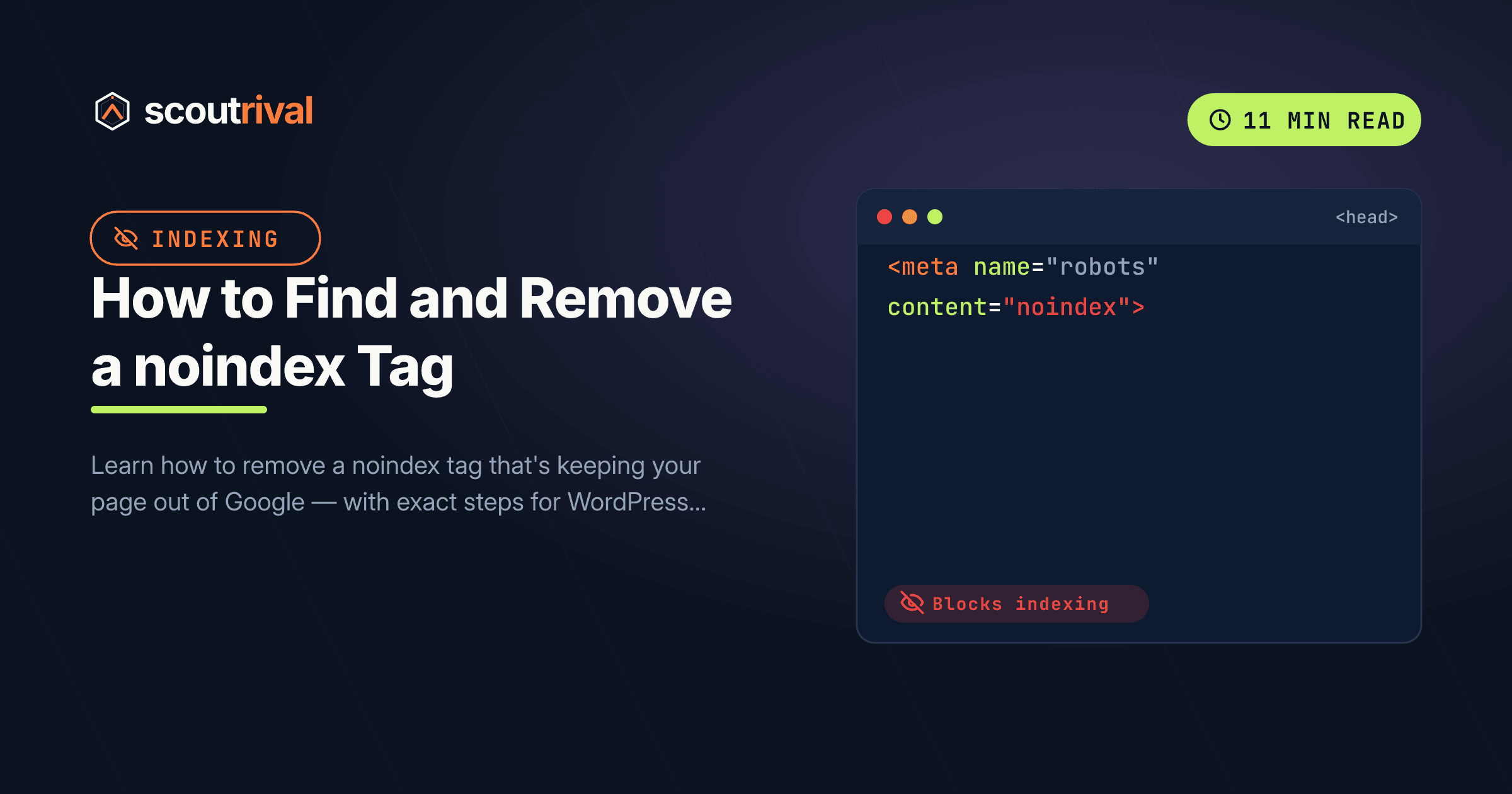
A noindex tag is a directive that tells search engines not to include a page in their index — meaning the page won’t appear in search results, no matter how good it is. It most often lives as a <meta> tag in the page’s HTML <head>, like this:
<meta name="robots" content="noindex">
It can also be delivered as an X-Robots-Tag in the page’s server response header — same instruction, just invisible unless you go looking for it.
Here’s the analogy: imagine you’ve written a brilliant book, but on the copyright page you’ve quietly printed “Do not list this book in any library catalogue.” The book exists, it’s on the shelf — but no one browsing the catalogue will ever find it. A noindex tag does exactly that to your web page: search engines can still crawl it, but they’re told never to show it to searchers.
Crucially, this is different from robots.txt blocking. Robots.txt stops crawlers from requesting a page; a noindex lets them read the page but tells them not to list it. That distinction matters, because you can accidentally trigger either one — and the fixes are different.
Why it matters for your SEO
A noindex tag on the wrong page is about as damaging as an SEO mistake gets, because it’s absolute:
- The page cannot rank. All the titles, content, links and speed work in the world are wasted — a noindexed page is simply not eligible to appear in search.
- It’s often invisible. Unlike a broken page, a noindexed page loads perfectly for visitors. Nothing looks wrong, so the problem can sit undetected for months while the page earns zero search traffic.
- It spreads through templates. A noindex set on a page template or a category can silently apply to dozens of pages at once.
The most common cause is innocent: a “discourage search engines” or “hide this page from search” setting that was switched on during the build and never switched off at launch. ScoutRival’s SEO Score reads the robots meta tag and the X-Robots-Tag header on each page and flags any that say noindex. Because a noindexed page is completely removed from search, this is scored as a high-severity crawlability issue — check it first if an important page has vanished from Google.
How to check if you have this problem
You can confirm a noindex tag in under a minute.
The 30-second manual check:
- Open the page in your browser, right-click, and choose “View Page Source.”
- Press Ctrl+F (or Cmd+F on a Mac) and search for the word
noindex. - If you find
<meta name="robots" content="noindex">(or a variant likecontent="noindex, follow"), that page is blocked from search. If there’s no match, its meta robots tag is clear.
The thorough tool check:
- In Google Search Console, use the URL Inspection tool on the page. If it reports “Excluded by ‘noindex’ tag,” you’ve confirmed the culprit.
- Re-run your ScoutRival SEO audit for a plain-English list of every page carrying a noindex, so you fix them all in one pass.
Make a note of every affected page, then work through the steps for your platform below.
How to fix it — step by step
The goal is the same everywhere: turn off the “hide from search” switch or remove the noindex tag, so the page becomes indexable again. On a custom site, you’ll swap the blocking tag for the correct indexable one.
WordPress
WordPress usually sets noindex through a setting or an SEO plugin, not by hand:
- First check the site-wide switch: Settings → Reading, and make sure “Discourage search engines from indexing this site” is unchecked. That single box noindexes your entire site.
- If you use Yoast SEO, edit the page, open the Yoast SEO box, go to the Advanced tab, and set “Allow search engines to show this page in search results?” to Yes.
- In Rank Math, edit the page, open Rank Math → Advanced, and under Robots Meta untick “No Index.”
- Update the page. If a whole post type or category is affected, check the plugin’s global Titles & Meta settings for a noindex applied at the template level.
Wix
- Open your Wix dashboard → SEO Tools, or edit the specific page.
- Go to the page’s SEO settings (in the editor: ⋯ menu on the page → SEO Basics, or Dashboard → SEO Tools → the page).
- Find the toggle “Let search engines index this page” (sometimes shown as “Show this page in search results”) and switch it on. Save and publish.
- Also check Settings → SEO at the site level to confirm the whole site isn’t hidden from search.
Squarespace
- Open the page in your site, then go to Page Settings → SEO (click the gear/settings icon next to the page in the pages panel).
- Make sure “Hide this page from search engine results” is turned off.
- For the whole site, go to Settings → Search Engine Indexing (or Marketing → SEO) and confirm “Hide site from search engines” is off.
- Save. Squarespace updates the page’s meta tags automatically.
Webflow
- Open the page, then click the Page Settings (gear icon) for that page.
- Scroll to the SEO settings / SEO Meta Settings and make sure “Sitemap indexing” is enabled and that “Disable indexing” (or a custom
noindexmeta) is not set. - Check Project Settings → SEO for any global robots.txt rule or the “Disable Webflow subdomain indexing” option (that one only affects the
*.webflow.iostaging URL, which is meant to stay unindexed). - Click Save, then Publish so the change goes live on your real domain.
Shopify
- Shopify indexes most pages by default, so a noindex usually comes from theme code. Go to Online Store → Themes → ⋯ → Edit code and open theme.liquid.
- Search the file for
noindex. If you find a line like<meta name="robots" content="noindex">— often wrapped in a condition that accidentally matches the wrong pages — remove or correct it. Save. - Some SEO apps add noindex controls per page; if you use one, open the app and make sure the affected page is set to indexable.
- Also confirm your storefront password page is disabled (Online Store → Preferences), since a password-protected store is hidden from search entirely.
Any other website (custom or unlisted CMS)
If your site is hand-coded or uses a builder not listed above, you’ll edit the tag directly:
- Open the affected page’s template or the HTML that renders its
<head>, and find the robots meta tag. - Remove the
noindexvalue. Use the correct indexable tag instead (keepfollowif it was there). The snippet below shows exactly what to remove and what to use:
<!-- remove this from pages you want indexed: -->
<meta name="robots" content="noindex">

<!-- correct tag for indexable pages: -->
<meta name="robots" content="index, follow">
- Also check your server response headers for an X-Robots-Tag: noindex — this does the same job invisibly. Remove it from the server or CDN config for pages you want indexed.
- Save and deploy, then request re-indexing (below).
How to confirm it’s fixed
- Reload the page and View Page Source again — searching for
noindexshould now find nothing (or you should seecontent="index, follow"). - In Google Search Console, run URL Inspection on the page. It should no longer say “Excluded by ‘noindex’ tag.” Click Request indexing to bring the page back faster.
- Submit or re-submit your XML sitemap in Search Console so Google re-discovers the page. New to that? See our guide on how to create an XML sitemap.
- Re-run your ScoutRival SEO audit. The “Remove stray noindex tags” item should now pass, and your Crawlability pillar score should improve.
Re-indexing isn’t instant — it typically takes a few days to a couple of weeks for the page to reappear in results.
Common mistakes to avoid
- Fixing noindex but leaving a robots.txt block. These are two separate instructions. If robots.txt also disallows the page, Google may not even re-crawl it to see your change — check both.
- Removing noindex from pages that should keep it. Some pages should stay out of search: thank-you pages, cart and checkout, internal search results, staging pages. Only clear noindex from pages you genuinely want found.
- Forgetting the X-Robots-Tag header. A page can look clean in its HTML but still carry a
noindexin its server response header. If the meta tag is gone but the page still won’t index, check the headers. - Not requesting re-indexing. Removing the tag makes the page eligible again, but Google won’t necessarily rush back. Use URL Inspection → Request indexing to speed it up.
- Assuming it’s instant. Even after everything is correct, give Google time to re-crawl before worrying that it didn’t work.
The bottom line
A noindex tag is a one-line instruction with an outsized effect: it can quietly erase an important page from every search engine. Find it in the page’s SEO settings or its HTML, switch it off (or replace it with index, follow), request re-indexing, and your page becomes eligible to rank again — usually within a couple of weeks.
Not sure whether it’s a noindex tag, a robots.txt block, or something else keeping a page out of search? Run a free SEO Score with ScoutRival — it pinpoints exactly what’s blocking each page and gives you plain-English steps to fix it. If a page is broken rather than hidden, read our guide on how to fix broken links and redirects.
Frequently asked questions
What is a noindex tag?
How do I know if a page has a noindex tag?
What is the difference between noindex and robots.txt?
How do I remove a noindex tag in WordPress?
How do I remove noindex on Wix or Squarespace?
How long does it take for a page to come back after removing noindex?
Should any pages keep a noindex tag?
Nasir Uddin is an SEO consultant and ScoutRival's SEO & Growth Lead. He's spent years helping small businesses climb the search results — and now the AI answers too — and writes about SEO, AI-search visibility, and turning organic traffic into real growth.
Keep reading
All SEO →
Stop reading about it. Ship it this week.
ScoutRival turns competitor intel into ready-to-post content and graphics — for a fraction of an agency.