How to Add a Title Tag to Your Web Pages (Step-by-Step)
Learn how to add a title tag to every page — with exact steps for WordPress, Wix, Squarespace, Webflow, Shopify and custom sites, plus a copy-paste template.

On this page
If ScoutRival’s SEO Score flagged “Add a page title,” it means one or more of your pages is missing its title tag — the single most visible piece of text you control in search results. It’s a quick, high-impact fix, and this guide walks you through it on every major platform in about 10 minutes, no coding required.
What is a title tag?
A title tag is an HTML element (<title>) that defines the name of a web page. It’s the bold, clickable blue headline you see for each result on a Google search page, the text on your browser tab, and the label saved when someone bookmarks your page.
Think of it as the cover of a book on a crowded shelf. A searcher scanning ten results decides in a split second which one to open, and the title is what they read first. A clear, specific title is an inviting cover; a missing one is a blank spine that nobody reaches for.
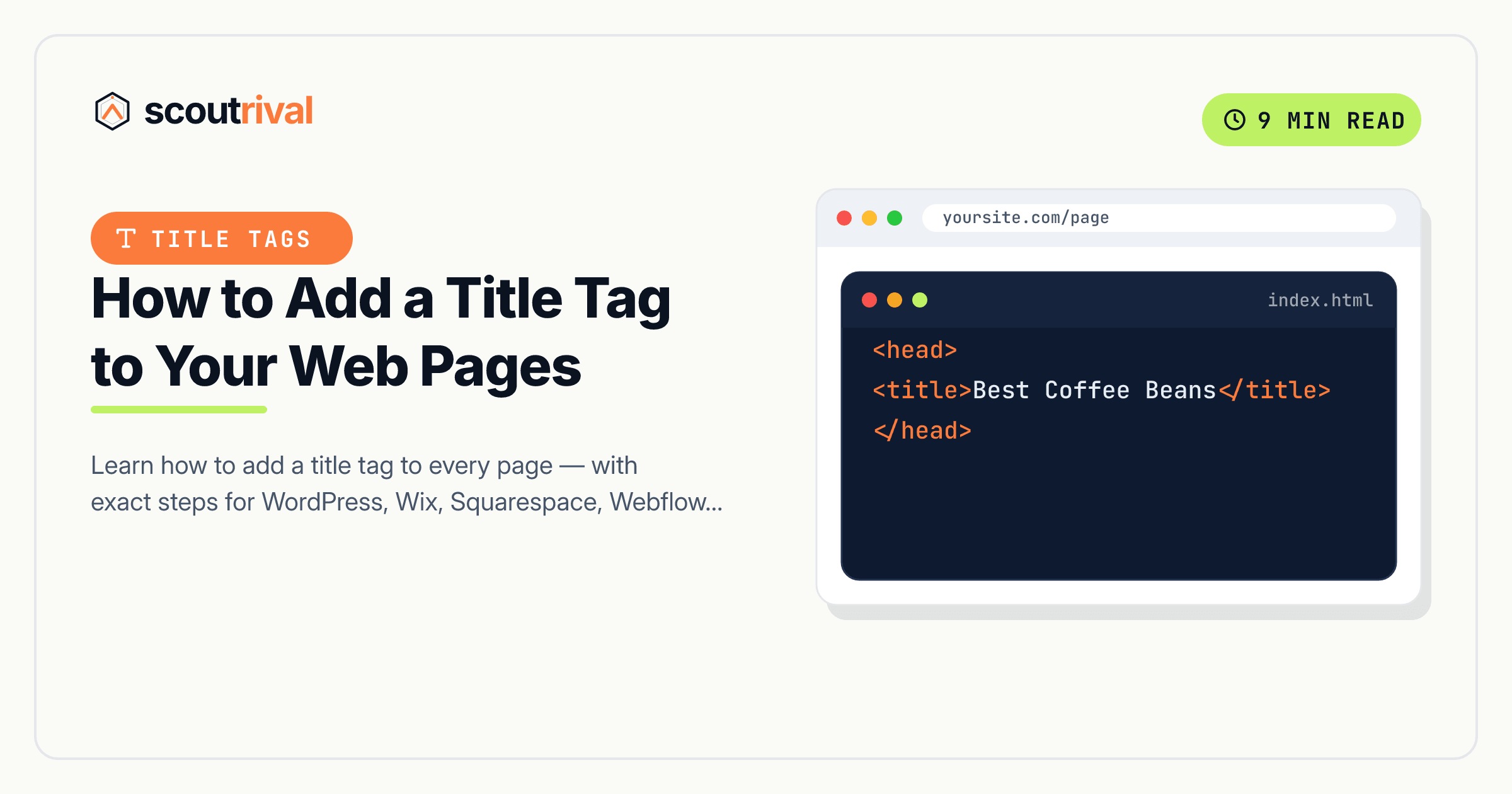
In the raw HTML of a page, a title tag looks like this, tucked inside the <head> section:
<title>Primary Keyword — Brand Name</title>
You’ll rarely need to touch that code yourself — every modern website builder gives you a plain text field to fill in instead. But it helps to know that’s what your builder is generating behind the scenes.
Why the title tag matters for your SEO
The title tag does two big jobs at once, which is why search engines lean on it so heavily.
- It tells Google what the page is about. The title is one of the strongest on-page signals for relevance. If your keyword sits naturally near the front, you’re helping the right searches find the right page.
- It wins (or loses) the click. Even a page that ranks well earns nothing if nobody clicks it. A specific, benefit-led title dramatically improves click-through rate compared to a vague one — or worse, one Google auto-generated from a stray line of your page.
When a page has no title tag, Google fills the gap with whatever it thinks fits — often your site name, a fragment of a heading, or a piece of navigation text. That guess is rarely as compelling as something you’d write on purpose, and it can even misrepresent the page.
ScoutRival’s SEO Score checks every crawled page for a present, non-empty <title>. Because a missing title is a high-severity on-page issue, fixing it moves your On-Page pillar score noticeably — and the fix below clears the flag.
How to check if you have this problem
You can spot a missing title in under a minute.
- Open the page in your browser and look at the browser tab at the top. If the tab shows the full web address (like
yoursite.com/about) instead of a readable name, the page probably has no title tag. - For a definitive check, right-click the page and choose “View page source,” then press Ctrl+F (or Cmd+F) and search for
<title>. If you find<title></title>with nothing between the tags, or no<title>at all, it’s missing. - Run your ScoutRival SEO audit. The report lists every affected URL by name under “Add a page title,” so you know exactly which pages to fix — no hunting required.
How to fix it — step by step
Pick your platform below. On every one, the goal is the same: give the page a unique, descriptive title in its SEO settings.
WordPress
WordPress uses your post or page name as a fallback, but you’ll get far better results by setting an explicit SEO title with a plugin:
- Install and activate an SEO plugin if you don’t have one — Yoast SEO and Rank Math are the most popular, and both are free.
- Edit the page or post, then scroll below the content editor to the plugin’s box (Yoast SEO or Rank Math panel).
- Click Edit snippet (Yoast) or open the Snippet Editor (Rank Math), and type your title into the SEO title field. Watch the live preview and character bar as you type.
- Update the page. The plugin writes the
<title>tag for you.
Wix
- Open your site in the Wix Editor, or go to your dashboard → SEO tools.
- For a specific page, click Pages & Menu → hover the page → ⋯ → SEO Basics (or Settings → SEO).
- Fill in the “What’s the title?” field with your page title. Wix shows a Google preview beneath it.
- Publish your site so the new title goes live.
Squarespace
- In the left menu, go to Pages and hover over the page you want to edit.
- Click the gear icon (⚙) to open its settings, then choose the SEO tab.
- Enter your title in the “SEO Title” field. Leave it blank only if you’re happy for Squarespace to fall back to the page’s title plus your site name.
- Click Save. Repeat for each page missing a title.
Webflow
- Open the Designer, then click the Pages panel (the file icon) on the left.
- Hover the page and click its gear icon (⚙) to open Page Settings.
- Under SEO Settings, fill in the Title Tag field. Webflow shows a live search-result preview.
- Click Save, then Publish your site so the change takes effect on your live domain.
Shopify
- From your admin, open the item you want to edit — under Online Store → Pages for a page, or Products / Collections for those.
- Scroll to the Search engine listing section and click Edit website SEO.
- Type your title into the Page title field. Shopify shows a Google preview and a character counter.
- Save. For your homepage title, go to Online Store → Preferences and edit the Homepage title there.
Any other website (custom or unlisted CMS)
If you hand-code your site or use a builder not listed above, add the title tag directly:
- Open the page’s HTML template and find the
<head>section near the top. - Add a single, unique
<title>tag (shown below), swapping in your real keyword and brand. - Make sure every page outputs its own title — never hard-code the same one site-wide. On templated sites, pull the title from a per-page variable.
<title>Primary Keyword — Brand Name</title>
How to confirm it’s fixed
- Reload the page and check the browser tab. It should now show your readable title, not a bare URL.
- View the source again (Ctrl+F for
<title>) and confirm your text sits between the tags. - In Google Search Console, use the URL Inspection tool on the page — it shows the title Google now sees. (Google may occasionally still rewrite a title in results, but a clear, relevant one is far more likely to be kept.)
- Re-run your ScoutRival SEO audit. The “Add a page title” item should now pass, and your On-Page pillar score should tick up.
Common mistakes to avoid
- Reusing the same title on every page. A duplicate title is almost as bad as a missing one — it confuses Google about which page to rank. If you have repeats, see our guide on how to find and fix duplicate title tags.
- Confusing the title tag with the H1 heading. They’re separate: the
<title>shows in the search result and browser tab, while the H1 is the big headline on the page itself. Set both, and keep them related but not identical. - Keyword-stuffing. A title crammed with repeated keywords looks spammy and gets rewritten by Google. Write for a human first.
- Leaving it too long. Titles over about 60 characters get cut off with an ellipsis in results. Front-load the important words so nothing vital is lost.
- Forgetting to publish. On Wix, Squarespace, Webflow and Shopify, changes only go live after you save and publish. Always re-check the live page.
The bottom line
The title tag is the first impression your page makes in search — the headline a searcher reads before deciding to click. Adding a clear, unique, keyword-led title to every page is a 10-minute job that improves both how Google understands your site and how many people click through to it.
Want to know exactly which of your pages are missing a title, and which other quick wins are hiding in your site? Run a free SEO Score with ScoutRival and get a prioritised, plain-English to-do list for every page.
Frequently asked questions
What is a title tag in SEO?
How do I add a title tag to a page?
What happens if a page has no title tag?
Is the title tag the same as the H1 heading?
How long should a title tag be?
Does the title tag affect Google rankings?
Why does Google sometimes show a different title than the one I set?
Nasir Uddin is an SEO consultant and ScoutRival's SEO & Growth Lead. He's spent years helping small businesses climb the search results — and now the AI answers too — and writes about SEO, AI-search visibility, and turning organic traffic into real growth.
Keep reading
All SEO →

Stop reading about it. Ship it this week.
ScoutRival turns competitor intel into ready-to-post content and graphics — for a fraction of an agency.